AI Voice Narration for Photography Videos: A Practical Guide
Your photos and POV footage are already powerful. Add a human voice — or a very convincing AI one — and the whole thing transforms into a story someone actually wants to watch from start to finish.
Why Narration Changes Everything
Think about the last travel documentary or street photography video you watched all the way through. Chances are, a voice was guiding you. Not just describing what you see, but providing context, intention, emotion — the things a photo alone cannot communicate.
AI voice narration for photography videos has quietly become one of the most powerful tools in a modern photographer's workflow. Not because it replaces the human voice, but because it removes the biggest barrier to adding one: most photographers hate listening to themselves on a recording.
With POV Syncer's built-in AI narration, you get premium voices that sound natural, can be timed precisely to photo appearances, and can be re-recorded instantly if you change your mind about the script. No microphone setup. No background noise. No fifth take because you stumbled over a word.
This guide covers exactly how to use AI voice narration effectively — from writing a script that sounds like it was spoken, to matching the right voice tone to your content type, to the practical workflow inside POV Syncer.
Get the settings right the first time
Download the free POV Photographer's Cheat Sheet — camera settings, EXIF tips, and export presets for Ray-Ban Meta, GoPro, DJI, and Insta360 on one printable page.
Free PDF, no spam. Unsubscribe anytime.
The Growing Role of AI Narration in Photography Content
A few years ago, "photography video content" meant a slideshow set to royalty-free music. Viewers tolerated it. Now the bar is higher. YouTube rewards watch time. Instagram Reels rewards engagement. TikTok rewards anything that makes someone pause mid-scroll. A well-timed narrated voice does all three.
The shift toward narrated photography content has been driven by a few overlapping trends. Creator culture has normalised the "talking head" format, but not everyone wants to appear on screen. POV cameras — Ray-Ban Meta, GoPro, DJI Action — have made first-person footage the dominant aesthetic for behind-the-scenes content. And AI voice technology has reached a quality threshold where listeners genuinely cannot tell the difference in casual viewing contexts.
The photographers gaining the most traction on YouTube and Instagram Reels right now are the ones combining strong visual content with confident, clear narration. They're teaching their audience something, or taking them somewhere, or showing them how a shot was made. A voice makes that possible at a fraction of the production effort.
Writing a Script That Sounds Spoken, Not Written
The single biggest mistake photographers make with narration — AI or recorded — is writing in prose and then reading it aloud. Written English and spoken English are different languages. Prose that looks elegant on a page sounds stiff and unnatural as speech.
Keep Sentences Short
Aim for sentences under 15 words. Long sentences lose listeners. They work on paper because readers can pause and re-read. In video, if your audience misses something, it's gone.
Compare these two versions of the same idea:
"The combination of the wide-angle POV footage captured by the GoPro mounted to my chest rig and the 28mm street photographs I was simultaneously taking with my Ricoh GR III creates a compelling dual-perspective narrative that allows viewers to understand both the spatial context of the scene and the decisive moment I chose to capture."
Versus:
"The GoPro shows you where I was standing. The Ricoh GR III shows you what caught my eye. Together, they tell you the whole story."
The second version is 21 words. The first is 60. Both communicate the same idea, but only one will hold attention in a video.
Write in First Person, Present Tense Where Possible
Narration feels most immediate when it puts the listener inside the moment. "I'm walking through the market" is more engaging than "I walked through the market." Present tense creates proximity. It feels live, even if the footage was shot weeks ago.
Leave Pauses in Your Script
Use ellipses or line breaks in your script to signal breathing room. AI voices handle pauses better when they're written in. A moment of silence after a strong photo appears on screen is often more effective than filling every second with words.
Read It Aloud Before You Generate
Before you input your script into POV Syncer's AI narration tool, read it aloud yourself. If you stumble anywhere, rewrite that sentence. If you find yourself taking an unexpected breath, add a comma or a period. Your natural reading rhythm is the best test of whether a script will work.
Timing Voiceover to Photo Appearances
This is where POV Syncer's 4-track timeline editor becomes essential. The voice narration track and the photo track are separate layers, which means you have precise control over when a photo appears relative to what's being said.
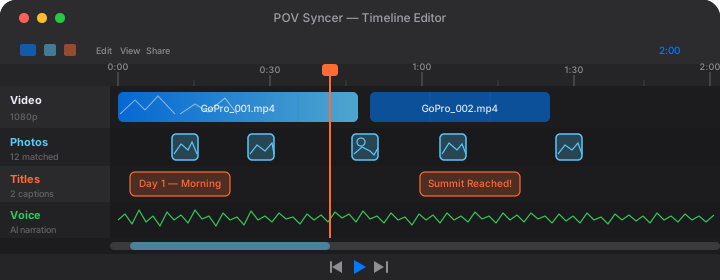
Three Timing Approaches
Lead with the voice, then reveal the photo. The narration sets up what the viewer is about to see. "This was the moment the light changed everything." — two-second pause — then the photo appears. The viewer is primed and looking for exactly what you promised. This works well for hero shots you want to land with maximum impact.
Photo first, voice second. Let the image appear and give the viewer a beat to take it in before you explain it. This approach respects the image's ability to communicate on its own and works particularly well for technically complex or emotionally rich shots where the viewer needs a moment before context is helpful.
Simultaneous. Voice and photo together, where the narration directly describes what's visible. This is the most straightforward approach and works well in faster-paced sequences where you're moving through multiple images quickly.
In practice, a good photography video uses all three. Mix the timing approaches across your shots to keep the viewer's attention moving and prevent the video from feeling formulaic.
The 2-Second Rule for Photo Hold Times
When a photo appears over video footage in POV Syncer, it stays on screen for as long as you set it in the timeline. The default is 3 seconds, which is a reasonable starting point. But the right hold time depends on the complexity of the image.
A simple, bold street portrait? 2 seconds is enough. A wide environmental shot with layers of foreground, midground, and background detail? Give it 5 or 6 seconds. Match your hold time to the visual density of each image, and let your narration pace confirm or extend those decisions.
Choosing the Right Voice Tone for Different Content Types
AI voice narration in POV Syncer isn't one-size-fits-all. The app offers multiple voices with distinct characters, and choosing the right one for your content type makes a significant difference to how the final video feels.
Travel Content
Travel photography videos work best with voices that convey warmth and curiosity. You want something that feels like a knowledgeable friend describing a place they love, not a documentary narrator or a corporate explainer. Look for voices with a natural pace — not too fast, not overwrought — and a slight sense of movement in the delivery. The voice should feel like it belongs outdoors.
For YouTube long-form travel content, a slightly lower-pitched voice often reads as more authoritative and holds attention over 8-15 minute run times. For Instagram Reels under 90 seconds, a brighter, more energetic voice keeps pace with the faster visual rhythm.
Street Photography
Street photography narration has a different character. It's observational, slightly philosophical, occasionally wry. The best street photography voiceovers feel like inner monologue — the internal commentary a thoughtful photographer has while walking a city. Choose a voice that doesn't oversell. Quiet confidence works better than enthusiasm for this genre.
Keep your scripts shorter for street content. Let the images do more work. If a shot is strong enough, a single sentence of narration is often more powerful than three.
Sports and Action
Sports photography videos demand energy. The narration should feel like it belongs in the same frame as the action — punchy, precise, forward-moving. Short sentences. Active verbs. Minimal adjectives. Choose a voice with pace and projection rather than reflective warmth.
Time your narration to cut-points in the video rather than photo appearances. In action sequences, the video footage is often as dramatic as the stills, so the narration should bridge them rather than stop to describe each image.
Try AI Narration Free in POV SyncerAI Narration vs Recording Your Own Voice
This question comes up constantly. The honest answer is that both have clear use cases, and knowing which to use when is more valuable than picking a side.
When AI Narration Wins
AI narration is faster. No setup, no room acoustics, no retakes when your neighbour starts the lawnmower. For photographers who produce regular content — a weekly YouTube video, a recurring Instagram series — speed compounds. If AI narration saves you 30 minutes per video and you publish 50 videos a year, that's 25 hours returned to your schedule.
AI narration is also more forgiving of script changes. Edit a sentence and regenerate — 5 seconds. Re-record a segment with your own voice, line up the sync, re-render — 15 minutes minimum. When you're iterating on content, that difference matters.
Finally, AI narration removes self-consciousness from the equation. Many photographers who would never record their own voice are comfortable with AI narration because they feel like they're making a production decision rather than a personal exposure.
When Your Own Voice Wins
Authenticity has a frequency that AI cannot fully replicate. If your brand is built on personal connection — if your audience follows you specifically because they like you — your own voice reinforces that relationship every time they hear it. AI narration, however good, is a production tool. Your voice is an identity signal.
Your own voice also handles spontaneous moments better. If you want to laugh mid-sentence, crack a wry observation, or let silence do something emotionally complex, a recorded voice has far more range than current AI models. The gap is closing, but it's real.
The practical answer for most photographers is to use AI narration as the default and record your own voice for specific content where the personal connection is the point — a deeply personal project, a tutorial where trust matters, or a video where you want to appear as a real human rather than a produced narrator.
The POV Syncer AI Narration Workflow
Here is exactly how to add AI narration to a photography video in POV Syncer. The whole process, from import to narrated export, takes under 20 minutes once you have your script ready.
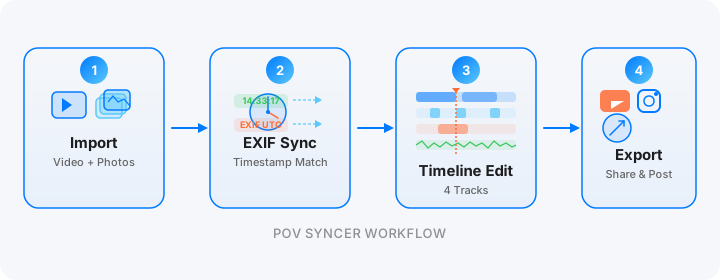
Step 1: Import Your Media
Open POV Syncer and create a new project. Import your POV camera video — this can be footage from Ray-Ban Meta glasses, a GoPro, DJI Action camera, or any video file. Then import the photos you took during the same session. POV Syncer reads the EXIF timestamps from your photos and places them automatically on the timeline at the correct moment in the video.
Step 2: Review the Auto-Sync
The app uses four EXIF matching strategies — GPS UTC timestamps, OffsetTimeOriginal, GPS-corrected timezone, and device timezone fallback — to place each photo as accurately as possible. Review the timeline and adjust any placements that need fine-tuning. This usually takes 2-3 minutes even for large imports.
Step 3: Write and Add Your Narration
Switch to the voice track in the 4-track timeline editor. Tap "Add AI Narration," choose your voice, and enter your script. The app generates the audio and places it on the voice track. You can then trim, move, and layer narration segments across the full length of your video.
Pro tip: write your narration in short segments rather than one long script. This gives you maximum control over timing in the timeline and makes edits much faster. A 90-second video typically needs 6-8 narration segments, each covering a specific moment or group of images.
Step 4: Fine-Tune Timing
Play through the video and adjust photo hold times and narration positions until everything feels right. This is where the craft happens — the difference between a video that feels assembled and one that feels edited. Take your time here.
Step 5: Choose Your Style and Export
Select from 15 premium fonts for your photo captions and 10 background styles for how photos are displayed over the video. Then export in the format you need — 9:16 for Instagram Reels and TikTok, 16:9 for YouTube, or 1:1 for feed posts. POV Syncer handles the render and you're done.
See the full feature list for POV Syncer's AI narration and timeline editor.
Practical Tips for Better AI Narration Results
A few things that make a real difference in the output quality.
Punctuate for Pacing, Not Grammar
AI voices respond to punctuation as breathing cues. A comma adds a short pause. A period adds a longer one. Use this to control pace. If you want a dramatic pause, try an em dash or a line break. Experiment with a few versions of the same sentence and listen back — you'll quickly develop an ear for what works with your chosen voice.
Avoid Jargon Unless It's Intentional
Photography has a rich vocabulary — aperture, bokeh, hyperfocal distance, zone system — and using it correctly signals expertise to a photography-savvy audience. But it can alienate casual viewers who might otherwise enjoy your content. Decide who your video is for and calibrate the technical density of your script accordingly.
Test Short Before You Commit Long
Before you write and generate a full narration script for a 10-minute video, generate 30 seconds and listen back. Does the voice feel right? Does the pacing work with your footage? Small adjustments to script style or voice choice at the start save significant rework later.
Use Silence Strategically
Not every moment in your video needs narration. Some shots are strong enough to hold the screen in silence. Gaps between narration segments — 3, 4, 5 seconds of just footage and ambient sound — give your viewer time to breathe and make the return of the narration feel more impactful when it comes back.
Platform-Specific Narration Strategies
YouTube
YouTube rewards watch time above everything else. Your narration strategy should be designed to keep people watching through the full video. Front-load context in the first 30 seconds — tell viewers what they're going to learn or see. Use narration to create chapter-like sections that signal progression. End with a clear call to action that references something mentioned earlier in the video to reward people who watched all the way through.
Instagram Reels
Instagram Reels under 90 seconds. The narration needs to be high-density — more information per second, fewer pauses, faster pace. The hook needs to land in the first 3 seconds. Consider using text overlays alongside the narration for viewers who watch with sound off (Instagram reports that over 60% of Reels are watched without audio at some point).
For Instagram, choose a voice with a slightly elevated pace and clear diction. Slower, more contemplative voices that work beautifully in a 12-minute YouTube documentary can feel sluggish in a 60-second Reel.
Getting Started Today
The photographers who are building audiences in 2026 are the ones who treat their content as a craft with the same seriousness they bring to the photography itself. AI voice narration is not a shortcut — it's a tool. Used well, it elevates your work. Used lazily, it makes mediocre content slightly more polished.
The difference is intention. Know what story you're telling before you start. Write a script that sounds like you at your most articulate. Choose a voice that serves the content rather than drawing attention to itself. And use POV Syncer's timeline editor to make sure every narration beat lands exactly where it should.
Your photos are already doing the heavy lifting. Give them a voice.
Ready to add AI narration to your photography videos?
POV Syncer includes premium AI voices, a 4-track timeline editor, and automatic EXIF photo sync. Start free, upgrade to Pro for $9.99/month or $99.99/year.
Download POV Syncer Free