DJI Action 5 Pro Video Editing: Sync Photos for Cinematic Results
The DJI Action 5 Pro changed what travel filmmakers thought an action camera could do. Ten-bit color. 4K at 120fps. D-Log M flat color profile for serious post-processing latitude. A magnetic quick-release mount that makes repositioning the camera a three-second task. Night mode that shoots clean video in conditions that would make most action cameras produce unwatchable noise.
But even with all of that capability, the DJI Action 5 Pro has one limitation that no firmware update can fix: its fixed wide-angle lens sees everything equally. The compressed landscape, the isolating portrait, the architectural detail that fills the frame — those require a different camera. For most travel filmmakers running the Action 5 Pro, that other camera is a Sony mirrorless body.
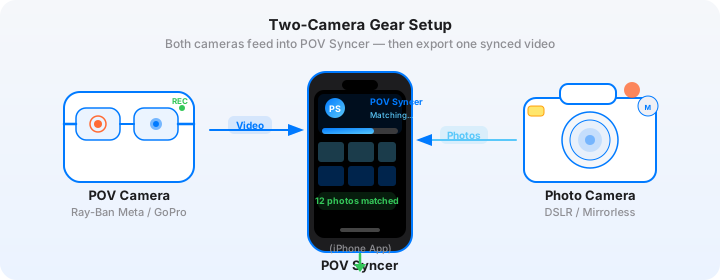
The Sony A7C II paired with the DJI Action 5 Pro is one of the most capable travel filmmaker setups available right now. The action camera handles continuous POV footage in any conditions; the Sony handles the deliberate, composed stills that elevate travel content from documentation to storytelling. DJI Action 5 Pro video editing with photo overlays — handled automatically by EXIF timestamps in POV Syncer — is how you combine these two camera systems into a single, polished output.
What Makes the DJI Action 5 Pro and Sony A7C II a Powerful Pair
The DJI Action 5 Pro earns its reputation through a combination of features that no competitor has fully matched. The 10-bit H.265 recording at up to 4K/120fps is the headline spec, but the detail that matters most to working filmmakers is the battery life: up to 166 minutes on a single charge in standard mode — almost three hours. Combined with the magnetic mount system, you can record a full day of travel with minimal battery management.
The D-Log M color profile is what gives DJI Action 5 Pro footage its cinematic potential. Shooting D-Log M compresses the dynamic range into a flat, desaturated image that retains detail in both highlights and shadows. Apply a LUT in post and the transformation is dramatic — you can match the Action 5 Pro's color to Sony's S-Log3 footage, or apply a cinematic film LUT, or create your own look. The 10-bit color depth means there are enough tonal steps in the image to make that grading work without banding.
The Sony A7C II brings what the action camera cannot: a 33MP full-frame sensor, 759 phase-detect AF points, and the ability to mount any lens in Sony's FE ecosystem. A 35mm f/1.8 for environmental portraits. A 70-200mm f/2.8 GM II for compressing city scenes. A 20mm f/1.8 for wide architecture shots with foreground depth. The photos from the A7C II at ISO 6400 are cleaner than most cameras at ISO 1600 — genuinely useful for travel in variable light.
DJI Action 5 Pro Settings for Travel Filmmaking
The right settings depend on your output destination and your willingness to color grade, but here are the configurations that work consistently for travel content.
Resolution and Frame Rate
4K at 30fps in D-Log M is the standard configuration for YouTube long-form travel content. You get the full resolution, a cinematic frame rate, 10-bit color for grading, and the Action 5 Pro's battery handles it comfortably. File sizes are substantial — budget around 4GB per hour — but modern iPhones handle these files without issue.
For content where slow motion is central — water sequences, crowded market scenes, vehicle shots — shoot 2.7K at 120fps. At 30fps playback that is 4x slow motion, which holds detail significantly better than 4K/120 on competing cameras. The catch is that 2.7K/120 generates files roughly 2.5x larger than 4K/30, so manage your storage accordingly.
For Instagram Reels and TikTok specifically, 4K at 60fps in the DJI's standard color profile (no D-Log M) is a strong choice. You skip the color grading step entirely, get smooth motion that looks good on phone screens, and the DJI's default color science is warm and pleasing without any processing.
Stabilization
The DJI Action 5 Pro's RockSteady 4.0 electronic stabilization is exceptional at chest-mount and head-mount distances from the body. Use RockSteady On for walking shots, cycling, and any activity where you want smooth, stable footage. For intentional handheld movement — swinging the camera around to reveal a scene, for instance — turn stabilization off and let the motion be natural.
HorizonSteady mode keeps the horizon level even when the camera rotates significantly, which is useful for surfing, skiing, and other activities where the camera tilts dramatically. It crops more aggressively than RockSteady, so reserve it for situations where the level horizon is critical to the shot.
Get the settings right the first time
Download the free POV Photographer's Cheat Sheet — camera settings, EXIF tips, and export presets for Ray-Ban Meta, GoPro, DJI, and Insta360 on one printable page.
Free PDF, no spam. Unsubscribe anytime.
Sony A7C II Settings for EXIF-Based Sync
For the sync to work accurately, the Sony A7C II needs a correctly set clock and the right file format. Here is what to configure before a travel session.
Clock Settings
The Sony A7C II supports automatic time sync via the Sony Imaging Edge Mobile app, which syncs the camera's clock to your iPhone when connected via Bluetooth or Wi-Fi. Enable this sync at the start of each travel day — it takes about 10 seconds and ensures your Sony and DJI clocks are within one second of each other.
If you are traveling across time zones, the A7C II's GPS module (if you have the optional GPS unit) can update the clock automatically when you arrive in a new country. Without GPS, sync via the Imaging Edge app whenever you land somewhere new.
File Format for Sync
Shoot in JPEG + RAW (ARW). The JPEG file is what you import to POV Syncer — it contains the full EXIF block including DateTimeOriginal, OffsetTimeOriginal, and GPS data if the GPS unit is connected. The RAW file is your archival copy for print and licensing.
Sony's JPEG engine on the A7C II is excellent. Shooting with the PP11 (S-Cinetone) picture profile gives you a warm, slightly desaturated cinematic look that pairs well with D-Log M footage after applying a standard Sony S-Cinetone LUT. If you prefer more punchy, social-media-ready JPEGs straight out of camera, use the Vivid creative style with slight saturation reduction.
Syncing DJI and Sony EXIF Data in POV Syncer
DJI Action cameras write video metadata in a format that records the start time of the clip referenced to UTC. Sony mirrorless cameras write JPEG EXIF including DateTimeOriginal (local time), OffsetTimeOriginal (timezone offset from UTC), and GPS timestamps when available.
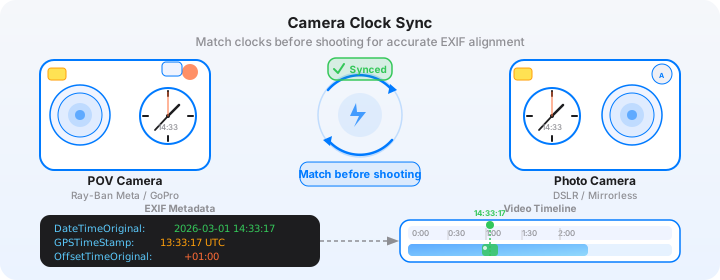
POV Syncer's four-strategy matching system handles this cross-brand sync automatically. When it reads a Sony JPEG, it checks GPS UTC timestamp first (the most accurate source, when GPS is connected to the A7C II), then applies the OffsetTimeOriginal timezone correction to the DateTimeOriginal timestamp, then falls back to device timezone matching. The result is photo placement accurate to within one to two seconds on the DJI video timeline in nearly all scenarios.
The Workflow from Import to Export
Transfer your DJI Action 5 Pro video to your iPhone via the DJI Mimo app's wireless transfer or a USB-C card reader. Transfer your Sony JPEG files via the Imaging Edge Mobile app, a Lightning-to-SD card reader, or AirDrop from a laptop. Once both media sets are on your iPhone, open POV Syncer and follow these steps:
- New Project: Select your DJI video file. POV Syncer reads the creation timestamp and duration, establishing the matching window.
- Import Photos: Select your Sony JPEG files from the session. Import the full set — POV Syncer filters automatically to photos within the video's timespan.
- Review Matches: Matched photos appear as markers on the timeline. Scrub through to verify placement. DJI-Sony sync with properly set clocks is typically accurate to within 1-2 seconds.
- Edit: Use the 4-track timeline to adjust photo display duration, add titles, add AI narration, and set the shutter sound.
- Export: Choose your target platform and resolution.
D-Log M Considerations for Photo Overlays
If you are shooting the DJI Action 5 Pro in D-Log M, your source video will appear flat and desaturated in the POV Syncer preview — this is expected behavior. The photo overlays from your Sony A7C II will appear with their full color and contrast, which can look jarring against the flat D-Log M background.
Two Approaches
Option 1 — Apply LUT before importing to POV Syncer. Export the D-Log M footage from the DJI Mimo app or Photos app after applying a LUT, then import the graded version to POV Syncer. This is the cleanest approach — the video and photos match in color treatment. The downside is the extra export step and the reduction in quality from re-encoding.
Option 2 — Shoot in DJI's standard color profile for social content. If the finished video is going to Instagram Reels or TikTok rather than YouTube, skip D-Log M entirely. The DJI Action 5 Pro's standard color science looks excellent, requires no post-processing, and the photos overlay cleanly because both media sources are treated color. This is the right call for 80% of travel content.
The D-Log M workflow is most valuable when you have the time and tools for a proper color grade — typically for YouTube long-form content where production quality is a key differentiator. For daily social content, the DJI's standard profile is the practical choice.
Building a Cinematic Travel Story in the Timeline
Travel films have a natural three-act structure: arrival and orientation, immersion and exploration, departure and reflection. POV Syncer's 4-track timeline gives you the tools to build this deliberately.
Pacing the Photos
For cinematic travel content, longer photo display durations work better than the fast cuts of action content. A photo of a market stall at 4 seconds allows the viewer to actually look at the composition — the textures, the light, the human detail that the action camera's wide lens cannot isolate. A 5-second display on a landscape portrait gives the image space to make its impact.
Vary the duration based on the complexity of the image. A simple environmental shot can hold at 2-3 seconds. A rich, detailed scene with multiple elements to read earns 4-6 seconds. Let the content dictate the pacing rather than applying a uniform duration across all photos.
Typography for Travel Content
POV Syncer Pro's 15 fonts include several that work beautifully for travel content. A clean, lightweight sans-serif works for location titles; an elegant serif carries weight for reflective caption text. The 10 background styles include frosted glass treatments that overlay cleanly on any footage without obscuring the underlying image.
For a Sony and DJI travel film, consider a simple three-title structure: an opening location card, a mid-video card naming the specific place being shown in a key photo, and a closing card for the production credit ("Shot on DJI Action 5 Pro + Sony A7C II"). These simple markers give the video a professional, deliberate quality.
AI Narration for the Travel Story
Travel filmmakers have a strong incentive to add narration — the images and footage raise questions (where is this? what is that?) that a voice can answer without requiring on-screen text. POV Syncer's AI voice library includes options from warm and conversational to authoritative and documentary in style.
Write the narration script to complement the footage, not to describe it. If the video shows walking through a market, the narration does not need to say "here we are in the market." It can instead provide context the footage cannot: "This market has operated in the same square since the 14th century. The vendors arrive before sunrise." That kind of informational depth elevates travel content from vlog to documentary.
At 100-150 words of narration per minute of video, a 10-minute travel film needs about 1,000-1,500 words of script — a reasonable amount to write and a significant addition to the viewer experience.
Export: YouTube and Instagram Reels
YouTube Long-Form
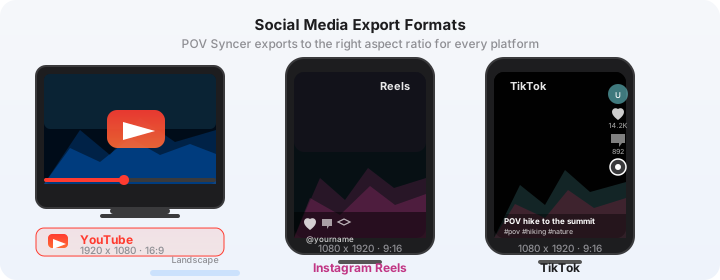
For YouTube, export at 16:9 in the highest resolution your source footage supports — 4K if you shot 4K, 2.7K if you shot at higher frame rates. YouTube's transcoding handles 4K well, and viewers watching on large screens will appreciate the resolution. Set the frame rate to match your source footage.
YouTube rewards watch time over everything else. A well-structured 10-15 minute travel film with strong narration and intentional photo moments will hold viewers better than a 3-minute highlight reel. Build for retention, not just for impressions.
Instagram Reels
Use the 9:16 vertical export at 1080x1920 for Reels. The DJI Action 5 Pro's wide-angle footage crops to 9:16 intelligently when the subject is centered — chest-mount footage works particularly well in vertical format because the action is always in the center of the wide-angle frame.
For Reels, keep the video to 60-90 seconds and lead with the strongest visual moment in the first 3 seconds. The algorithm rewards content that captures attention immediately, and the DJI's cinematic footage is visually distinctive enough to stop a scroll when the opening frame is well-chosen.
A Note on the Full Travel Filmmaker Workflow
The DJI Action 5 Pro and Sony A7C II combination covers every visual need of travel filmmaking, but it requires some workflow discipline to use effectively. The DJI runs continuously; the Sony requires deliberate, intentional shooting. The best travel films shot with this combination are ones where the photographer is actively thinking about what the Sony can add at any given moment — the detail shot that the DJI cannot resolve, the compressed perspective that the fixed wide-angle cannot achieve, the portrait that requires a fast lens wide open.
Think of the DJI as your ambient recorder and the Sony as your editorial eye. The DJI captures everything; the Sony captures the things worth looking at closely. POV Syncer brings both into a single output that shows both perspectives simultaneously, automatically synced.
POV Syncer Pro unlocks AI narration, 15 fonts, 10 background styles, unlimited projects for $9.99 per month or $99.99 per year. The free tier is enough to run through the full workflow and see the quality of the output before deciding to upgrade.
Make your travel footage cinematic
Download POV Syncer free and sync your DJI Action 5 Pro footage with Sony stills in minutes.
Download POV Syncer Free