EXIF Timestamps Explained: Why Your Photos Sync Automatically
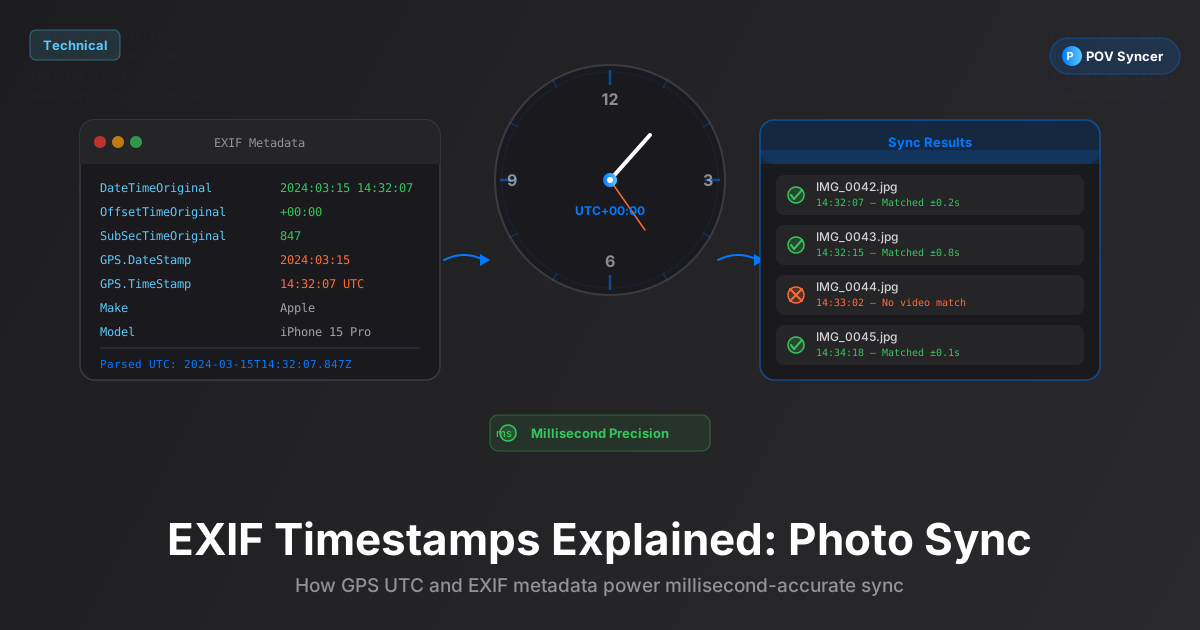
Every photo you take contains hidden data describing exactly when and how it was captured. That data — called EXIF — is what makes automatic photo-to-video syncing possible. Here is a complete explanation of how EXIF timestamps work, how POV Syncer uses them to match your photos to your video, and how to diagnose and fix the most common sync problems.
What Is EXIF Data?
EXIF stands for Exchangeable Image File Format. It is a standard, first formalised in 1995 and now maintained by CIPA (Camera and Imaging Products Association), that defines how cameras should embed technical metadata inside JPEG, TIFF, HEIF, and RAW photo files.
When you press the shutter on any digital camera — a smartphone, a GoPro, a DSLR, a pair of Ray-Ban Meta glasses — the camera writes a block of EXIF data directly into the image file before it saves to storage. This block sits inside the file but is invisible to anyone just looking at the photo. It contains dozens of fields describing the camera, the lens, the exposure settings, and — most importantly for our purposes — the exact time the photo was taken.
EXIF data is the silent narrator of every photo. A JPEG that looks like a simple mountain landscape is actually carrying: the camera model, lens focal length, aperture (f/2.8), shutter speed (1/1000s), ISO (400), GPS coordinates (latitude, longitude, altitude), the date and time of capture (2026-02-14T08:33:17), and the timezone offset (+05:30 for India Standard Time, for example). All of this fits in a few kilobytes at the top of the file.
Get the settings right the first time
Download the free POV Photographer's Cheat Sheet — camera settings, EXIF tips, and export presets for Ray-Ban Meta, GoPro, DJI, and Insta360 on one printable page.
Free PDF, no spam. Unsubscribe anytime.
The EXIF Timestamp Fields: What They Are and Why They Differ
Here is where it gets interesting — and where sync errors come from. There is not one EXIF timestamp field; there are several, and they can disagree with each other. Understanding which field to trust is the foundation of reliable photo-to-video syncing.
DateTimeOriginal
This is the most common timestamp field and the one most people mean when they say "the EXIF timestamp." It records the date and time the shutter was pressed, in the camera's local time. If your camera clock says it is 2:33pm when you take the photo, DateTimeOriginal will record 2026-02-14 14:33:17.
The problem is that DateTimeOriginal does not include any timezone information. It is a naive timestamp — it tells you the clock reading but not which timezone that clock is set to. If you are photographing in Tokyo with a camera configured for New York time (a common situation when you forget to update the clock after a flight), DateTimeOriginal is 14 hours off from the actual moment of capture.
OffsetTimeOriginal
OffsetTimeOriginal is a companion field to DateTimeOriginal that records the timezone offset at the time of capture — for example, +09:00 for Japan Standard Time or -05:00 for US Eastern Time. When this field is present, you can convert DateTimeOriginal to UTC (Coordinated Universal Time) and have an absolute, timezone-independent timestamp that can be compared with timestamps from any other camera anywhere in the world.
Modern cameras from Apple, Sony, Fujifilm, and others write OffsetTimeOriginal reliably. Older cameras, and some action cameras that do not pull timezone data from GPS, may not write this field at all. Its absence is one of the main reasons sync can fail.
GPS Timestamp (GPSDateStamp and GPSTimeStamp)
Cameras with GPS receivers — including the GoPro Hero 12 and 13, DJI Action 5 Pro, many smartphones, and some newer DSLRs — write a separate set of GPS timestamp fields. These record the time the GPS signal was acquired, expressed in UTC. Because GPS time is synchronised to atomic clock networks accurate to within 100 nanoseconds, a GPS timestamp is the gold standard for photo-to-video sync.
When GPS timestamp data is present, it does not matter what timezone the camera's clock is set to. The GPS fields tell you exactly when the photo was taken in absolute universal time. A GoPro taken at 14:33:17 JST in Tokyo records GPS time as 05:33:17 UTC regardless of whether the camera's local clock is correct.
GPS-Corrected Timezone
Some cameras write both a GPS timestamp and a DateTimeOriginal timestamp. When both are present, it is possible to calculate the camera's effective timezone by comparing them: if DateTimeOriginal is 14:33:17 and GPSTimeStamp is 05:33:17 UTC, the camera's local timezone is +09:00 (9 hours ahead of UTC). This calculated timezone can then be used to correct timestamps from photos that do not have GPS data but were shot in the same session.
How POV Syncer Matches Photos to Video: The 4-Strategy System
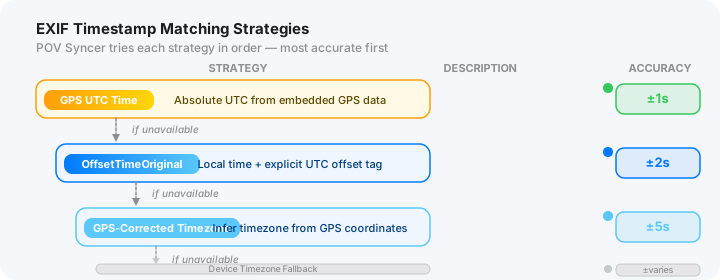
Different cameras write different EXIF fields. A GoPro Hero 13 and a Leica Q3 use the same file format but embed timestamps differently. A photo taken on an iPhone 15 Pro has richer GPS metadata than one taken on a 10-year-old Canon DSLR. POV Syncer's matching engine handles this diversity through a cascading 4-strategy system that tries the most accurate method first and falls back to progressively less precise methods as needed.
Strategy 1 — GPS UTC Time
This is the most accurate matching strategy and the first one attempted. POV Syncer reads the GPSDateStamp and GPSTimeStamp fields from each photo and converts them to a Unix timestamp (seconds since January 1, 1970, at 00:00:00 UTC). It also reads the GPS timestamp embedded in the video file's metadata — most action cameras write GPS data to video as well as photos.
When both the photo and the video have GPS timestamps, matching is as simple as finding the point in the video timeline where the GPS time matches the photo's GPS time. With GPS timestamps, sync is typically accurate to within 1 second or better. For a 30fps video, that means the photo appears within 30 frames of the correct moment — usually indistinguishable from frame-perfect placement.
Example: You take a photo with your iPhone 15 Pro at 14:33:17 local time in Paris. The GPS timestamp in the EXIF is 13:33:17 UTC. Your GoPro Hero 13 video has a GPS timestamp of 13:30:00 UTC at the start of the clip. POV Syncer places the photo at 3 minutes and 17 seconds into the video timeline. Exactly correct.
Strategy 2 — OffsetTimeOriginal
When GPS timestamps are not available — either because the photo was taken indoors away from GPS signal, or because the camera does not have a GPS receiver — POV Syncer tries OffsetTimeOriginal. This field provides the timezone offset that, when applied to DateTimeOriginal, yields an absolute UTC-equivalent timestamp.
The matching process is the same as Strategy 1: convert the photo's adjusted timestamp to UTC, find the matching point in the video timeline. The accuracy depends on how precisely the camera's clock is set — most modern cameras sync their clocks via NTP (Network Time Protocol) through a connected phone app, keeping them accurate to within a second or two.
Strategy 3 — GPS-Corrected Timezone
This strategy handles a specific but common scenario: photos from a camera that writes GPS data to some photos (those taken outdoors with a clear sky view) but not others (those taken indoors, in a tunnel, or in a heavily shaded environment). In this case, POV Syncer calculates the camera's effective timezone from the GPS-stamped photos and applies that timezone to the non-GPS photos from the same session.
This is a clever workaround for an annoying real-world problem. If you are street photographing in a city and duck into a covered market for 20 minutes, your photos taken inside may lack GPS data. Strategy 3 uses the timezone established from your outdoor photos to correctly interpret the timestamps of your indoor photos.
See EXIF Sync in Action — FreeStrategy 4 — Device Timezone Fallback
The final fallback handles the oldest cameras and the most minimal EXIF implementations. Some cameras — particularly older DSLR and mirrorless bodies, older compact cameras, and some action cameras without GPS — write only DateTimeOriginal with no timezone information and no GPS data.
In this case, POV Syncer uses the device timezone of the iPhone running the app as the assumed timezone for both the photos and the video. This works correctly when you are editing footage from a session that occurred in the same timezone as your current location, or when you manually set the timezone in the app's settings to match where you were when you shot.
Strategy 4 is less accurate than the previous three strategies, but it handles the vast majority of remaining cases correctly. The only scenario it fails is when the photo's camera clock was set to a different timezone than the video's camera clock and neither has GPS or offset data to resolve the difference. We cover how to diagnose and fix this below.
Why Photo-to-Video Sync Is Different from Manual Alignment
Before tools like POV Syncer existed, the workflow for combining action camera video with photographer stills was: import everything into a desktop editor, scrub through the video to find where you think each photo was taken, manually drag the photo clip to that position on the timeline, watch the result, adjust. For a session with 30 photos across a 45-minute clip, this could take 2 to 3 hours and still produce approximate rather than accurate results.
EXIF-based automatic matching eliminates this entirely. The timestamp in each photo is the photographer's own declaration of when that shot happened. It is not an approximation made in post-production — it is a record made at the moment of capture. The matching system is simply reading those records and acting on them.
The difference in accuracy is measurable. Manual alignment by an experienced editor is typically accurate to within 3 to 5 seconds — close enough that the photo and the video moment "feel" synchronised, but not frame-accurate. GPS-timestamp-based automatic matching is accurate to within 1 second, and often to within a single frame at 30fps. That precision means the photo cut-in appears exactly when the action peaks, not a few seconds before or after.
Common EXIF Timestamp Problems and How to Fix Them
Problem 1 — Photos Appear Several Hours Off in the Video
This is almost always a timezone mismatch. Your video camera's clock is set to one timezone and your photo camera's clock is set to another. The most common cause is travelling without updating one or both cameras' clocks. A 6-hour time difference means photos appear 6 hours before or after their actual position in the video.
Fix before shooting: Before every session, confirm that both cameras show the same local time. Open the settings on each camera and verify the timezone and current time match. For action cameras, connect to the companion app (GoPro Quik, DJI Mimo, Insta360 app) and allow it to sync the camera's clock to your phone's time.
Fix after shooting: In POV Syncer's timeline editor, if you notice all photos are offset by the same amount, you can apply a global time offset to all photos — shifting every photo's timestamp by the same number of hours and minutes to correct the mismatch. This is a manual fix but takes about 30 seconds once you identify the offset.
Problem 2 — Photos Are Scattered Randomly Across the Timeline
Random placement usually means the photo timestamps are not being read correctly — either because the EXIF data is malformed, or because the photos were processed through software (Instagram export, Google Photos auto-enhancement) that stripped or modified the EXIF data.
Fix: Use original, unprocessed files from your camera for photo syncing. If you downloaded photos from a cloud service, check whether the EXIF data survived the upload and download cycle. Most cloud services preserve EXIF, but some social platforms strip it for privacy reasons. An app like Metapho (iOS) lets you inspect the full EXIF data of any photo on your phone and confirm the timestamps are present and correct.
Problem 3 — A Subset of Photos Are Misplaced
If most photos sync correctly but a few land in the wrong position, the most common cause is GPS signal dropout. Photos taken inside buildings, under heavy tree cover, or in steep valleys may fall back to Strategy 4 (device timezone fallback) while surrounding photos use Strategy 1 (GPS UTC). If there is a slight difference between the device timezone and the actual shooting timezone, those fallback photos will be slightly off.
Fix: In POV Syncer's timeline editor, manually adjust the position of the misplaced photos. Since the rest of the photos in the session are correctly placed, you can see exactly where the outlier photos should be and drag them to the right position. This is typically a 10-to-30-second correction per photo.
Problem 4 — No Photos Match at All
If POV Syncer places no photos on the timeline automatically, the most likely cause is that the video and photos were shot on different days, or the EXIF data in the photos is completely absent or unreadable.
Fix: Check the date on the video file versus the date on the photos. If they differ, confirm you imported the right files. If the EXIF timestamps are absent — this can happen with screenshots, scanned prints, or photos exported from certain apps — you can manually place photos on the timeline by dragging them to the correct position. The automatic sync handles the precision work, but the timeline editor always gives you full manual control.
EXIF Timestamp Quality by Camera: A Practical Reference
Not all cameras write EXIF timestamps with equal precision. Here is a practical summary of what to expect from the most popular cameras used with POV Syncer:
- iPhone 15 Pro / iPhone 16 series: GPS + OffsetTimeOriginal. Strategy 1 accuracy. Excellent sync reliability. GPS corrects automatically for timezone and DST.
- GoPro Hero 12 / Hero 13: GPS timestamps in both video and photo files. Strategy 1 accuracy. Requires GPS to be enabled in settings before shooting.
- DJI Action 5 Pro: GPS timestamps in video and photo files. Strategy 1 accuracy. GPS timestamp accuracy is maintained even in D-Log M recording mode.
- Insta360 X4: GPS timestamps in 360 photos and video. Strategy 1 accuracy. Note that reframed clips exported from Insta360 Studio may lose GPS metadata — export original footage to POV Syncer before reframing if possible.
- Ray-Ban Meta glasses: Internal clock timestamps. Strategy 2 accuracy (OffsetTimeOriginal written). No GPS in photos, but the glasses sync their clock to the paired iPhone's time, producing reliable timestamps.
- Fujifilm X100VI / X-T5: OffsetTimeOriginal written when the camera's location data is enabled via the Fujifilm Camera Remote app. Strategy 2 accuracy without the app; Strategy 4 fallback otherwise.
- Sony A7C II / A7 IV: OffsetTimeOriginal written. GPS available via Sony Imaging Edge Mobile pairing. Strategy 1 when GPS-paired, Strategy 2 otherwise.
- Older DSLR cameras (Canon EOS 5D Mark III, Nikon D800, etc.): DateTimeOriginal only, no timezone, no GPS unless via a separate GPS receiver. Strategy 4 fallback. Correct timezone must be configured in app settings for accurate sync.
How to Verify Your EXIF Data Before a Session
The easiest way to avoid sync problems is to verify your EXIF data before you rely on it for a shoot. Here is a 2-minute pre-shoot checklist:
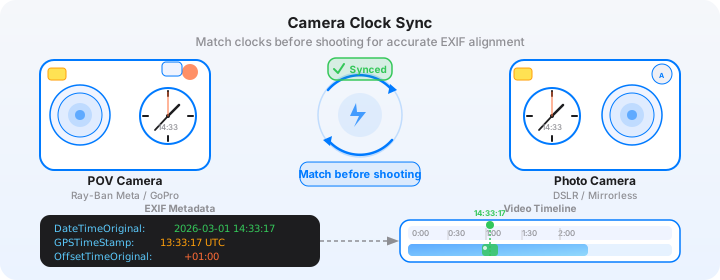
- Take a test photo with each camera you plan to use.
- On your iPhone, open the Photos app, select each test photo, and swipe up to see the metadata. Verify the time shown matches the current local time.
- For deeper inspection, use Metapho or a similar EXIF viewer app to confirm the
DateTimeOriginal,OffsetTimeOriginal, and GPS timestamp fields are all present and accurate. - For action cameras, open the companion app and confirm the camera's clock shows the correct local time.
- Enable GPS on every camera that supports it. Wait for the GPS indicator to confirm a fix before shooting.
Five minutes of setup before a session prevents 30 minutes of manual correction in post. This is the highest-return investment you can make in your photo-sync workflow.
Why Automatic EXIF Sync Beats Every Alternative
The three alternatives to automatic EXIF sync are: manual alignment (drag photos to position by eye), clapperboard sync (clap at the start of a session, use the clap as a sync point), and timecode sync (hardware timecode generators on each camera). Each has significant limitations.
Manual alignment is slow, approximate, and exhausting at scale. Clapperboard sync requires you to be at the same location with both cameras at the start of every session — impossible if you are shooting photos while wearing a POV camera on your head. Timecode hardware is expensive, adds weight to your kit, and is genuinely overkill for a one-person photo-video setup.
EXIF timestamp sync requires nothing extra — no hardware, no setup ritual, no clapping — because the timestamp was written into every photo the moment you pressed the shutter. The data exists. The matching system reads it. Your photos appear on your video timeline in the right place.
For the vast majority of camera combinations — any action camera or smartphone paired with any photo camera manufactured after 2010 — EXIF sync just works. Understanding how it works, and knowing how to fix the edge cases where it does not, is the difference between an occasional frustrating session and a workflow you can trust every time you shoot.
Ready to try automatic EXIF sync?
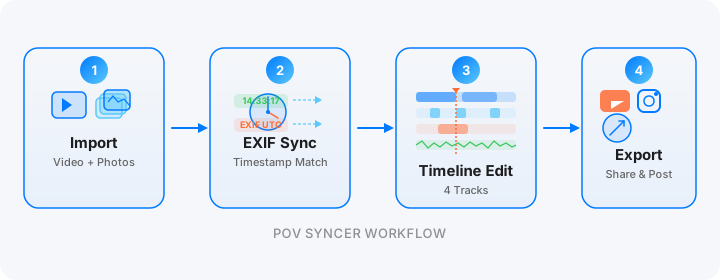
Download POV Syncer free. Import your video and photos, and watch the 4-strategy matching system place every photo on your timeline automatically.
Download on App Store — Free