GoPro Hero 12 + iPhone: Sync Your Action Shots to Video
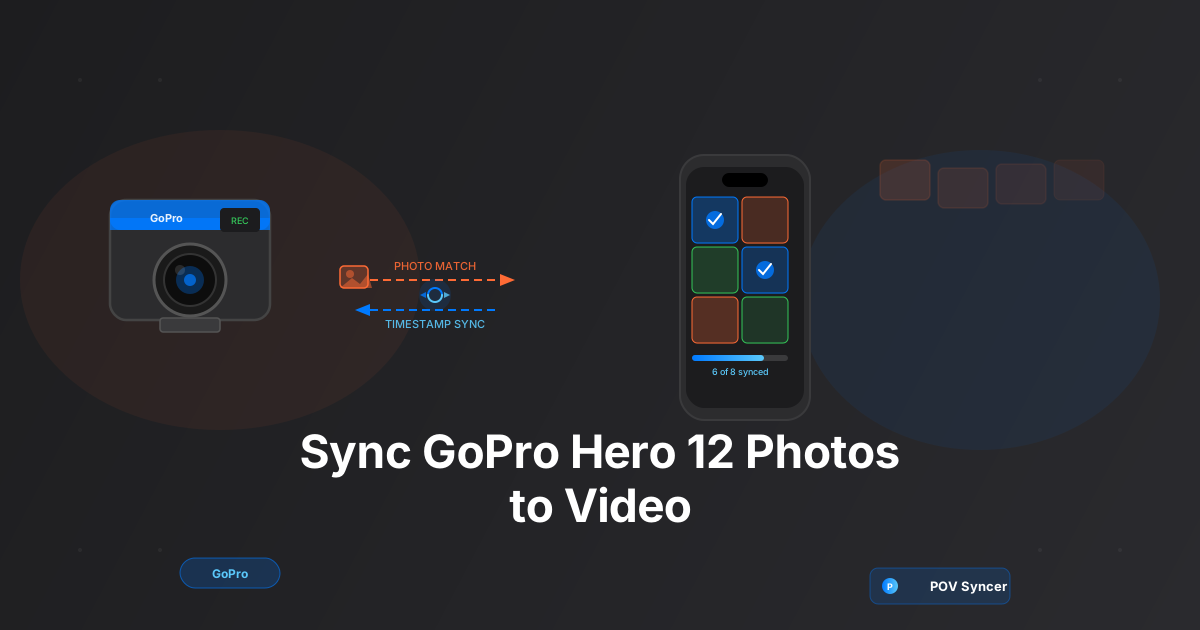
Action cameras are built to capture the moment. GoPro Hero 12 footage from a surfboard, a mountain trail, or a skateboard gives viewers something a static photo never can — movement, speed, the physical sensation of being there. But scroll through the best action content on YouTube Shorts and TikTok, and you will notice that the most-watched videos do not rely on continuous footage alone. They cut to still images. A sharp frame of the wave face before the drop. A perfectly composed shot of the trailhead at sunrise. A dramatic silhouette at the summit.
Those stills are doing a lot of narrative work. They give the viewer's eye a moment to rest, they emphasize specific details the wide-angle GoPro lens cannot isolate, and they dramatically increase the perceived production quality of the video.
The challenge is getting those stills — shot on your iPhone while the GoPro is running — to appear at precisely the right moments in the video. Manual syncing in a desktop editor takes 20 minutes and requires a laptop. GoPro photo sync via EXIF timestamps, handled automatically by POV Syncer on your iPhone, takes about three minutes. This is how it works.
Why GoPro Owners Need Photo Overlays
The GoPro Hero 12 is extraordinary at what it does. HyperSmooth 6.0 stabilization makes helmet and chest-mount footage watchable that would otherwise be nauseating. The wide-angle lens captures the full environment around you. 5.3K resolution means you can punch in during editing and still have more than enough pixels for a 1080p export. Battery life is solid for a camera this size.
What GoPro footage cannot give you is selective focus, compressed perspective, or the deliberate framing of a composed still. The fixed lens sees everything equally. There is no way to blur a distracting background, isolate a subject from the chaos around it, or compress distant mountains into the foreground the way a telephoto does on your iPhone.
When you combine GoPro action footage with intentional iPhone stills — stopped on a cliff edge to compose a portrait, crouching down to frame a wave from knee height — you cover every visual register the content needs. The GoPro handles the continuous documentary footage; the iPhone handles the editorial moments.
GoPro Hero 12 Settings for Video Sync Workflow
Your GoPro settings affect both the quality of the footage and, critically, how accurately it can be synced with your iPhone photos. Here is what to set before a session.
Resolution and Frame Rate
2.7K at 60fps is a strong default for most action content destined for YouTube Shorts or TikTok. You get smooth motion, HyperSmooth working at full effectiveness, and file sizes that are manageable on a phone. If the subject is slower-paced — hiking, cycling on gravel — 4K at 30fps gives you better image quality and a natural cinematic look.
For genuinely high-speed subjects (surfing waves above head height, BMX, downhill mountain biking), shoot 2.7K at 120fps and you have 4x slow motion available in the edit. The catch is battery life: 120fps drains the GoPro Hero 12 about 40% faster than 30fps at the same resolution.
HyperSmooth Stabilization
Leave HyperSmooth 6.0 on. The stabilization crops the sensor slightly to create its processing buffer, but the perceptual improvement is enormous. For very smooth, tripod-like action shots, use Boost mode. For activities where some natural camera movement is desirable (surfing, where the swell motion is part of the feel), use Standard mode.
ProTune Settings
For most creators posting to social platforms, ProTune Off is the right call. The GoPro's default color science looks good and requires no color grading. If you are comfortable with basic LUT application in your editing workflow, enabling ProTune and shooting with GoPro Flat color profile gives you more latitude to push the colors in post. Exposure, ISO, and white balance settings under ProTune:
- Shutter: Auto (let the camera optimize for your frame rate)
- ISO Min: 100, ISO Max: 800 (outdoor shooting)
- White Balance: Auto for changing light conditions, lock it for consistent midday sun
- Sharpness: Medium (High is oversharpened; you can sharpen in post if needed)
Get the settings right the first time
Download the free POV Photographer's Cheat Sheet — camera settings, EXIF tips, and export presets for Ray-Ban Meta, GoPro, DJI, and Insta360 on one printable page.
Free PDF, no spam. Unsubscribe anytime.
The Critical Step: Syncing GoPro Clock with iPhone
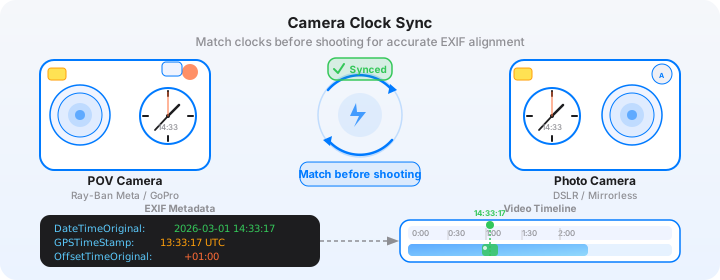
This is where most people running a GoPro photo sync workflow run into problems. The GoPro Hero 12 has an internal clock that drifts — sometimes by several seconds, sometimes by several minutes if the camera has been sitting unused for a few weeks. If your GoPro clock is 45 seconds behind your iPhone clock, every photo will appear 45 seconds earlier in the video than it should.
How to Sync the Clocks
The simplest method is to use the GoPro Quik app on your iPhone. When you connect the Hero 12 to Quik via Bluetooth, the app automatically syncs the GoPro's clock to your iPhone's time. Do this at the start of every session, particularly after the camera has been sitting unused.
The Quik sync gets your clocks within 1-2 seconds of each other, which is accurate enough for POV Syncer's matching algorithm. For extremely fast action where one-second precision matters, you can use a more manual approach: with both cameras rolling at the same time, clap your hands once in front of both cameras. The sharp audio spike on the GoPro footage and the shutter sound from your iPhone photo give you a reference point to verify alignment after the fact.
If you are shooting across time zones — arriving in a new country — the GoPro does not automatically update its clock the way your iPhone does. Connect to Quik whenever you land somewhere new.
iPhone Settings for the Sync
The same rules apply as for any EXIF-based workflow: native iOS Camera app only, automatic time enabled (Settings > General > Date & Time > Set Automatically: ON), and Location Services enabled for the Camera app. The GPS timestamp embedded in iPhone photos is the most accurate timestamp source available, and POV Syncer uses it as its primary matching strategy when GPS data is present.
Importing to POV Syncer: Step by Step
Transfer your GoPro footage to your iPhone first. The easiest method is via the GoPro Quik app's wireless transfer, though for longer sessions a Lightning or USB-C card reader is significantly faster. Once the video file is in your camera roll or Files app, you are ready.
Step 1: Start a New Project
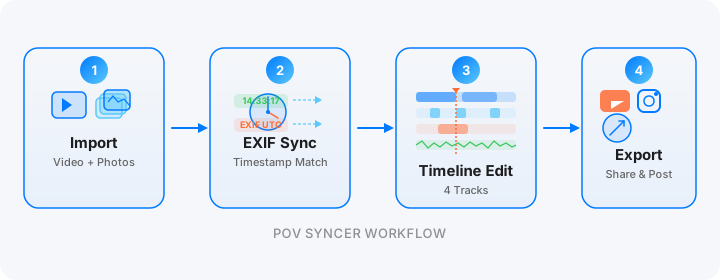
Open POV Syncer and tap "New Project." Select your GoPro Hero 12 video file. The app reads the video's duration and creation time, which becomes the reference window for matching your photos.
Step 2: Import Your iPhone Photos
Select the photos from your iPhone's camera roll that you shot during the GoPro session. You do not need to sort them beforehand — import all the photos from the session and POV Syncer will filter to only those whose EXIF timestamps fall within the video's duration.
POV Syncer's matching system checks four timestamp sources in priority order: GPS UTC time (the most accurate, when available), OffsetTimeOriginal (handles timezone offset correctly), GPS-corrected timezone, and device timezone as a fallback. In practice, this means the app handles all the timezone arithmetic that trips up manual sync attempts.
Step 3: Review the Matches
The matched photos appear as markers on the video timeline. Scrub through the timeline to verify that each photo appears at the right moment. If the GoPro clock was perfectly synced, the matches should be accurate to within a second or two. You can drag any marker to fine-tune the placement.
Step 4: Build the Edit
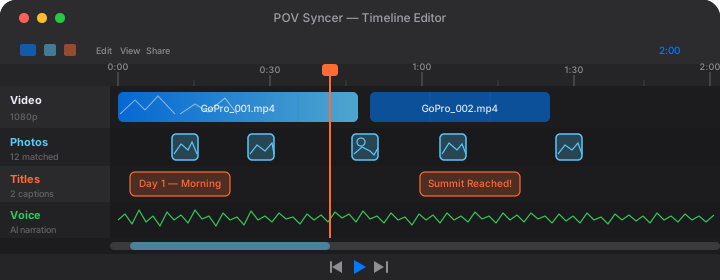
Use POV Syncer's 4-track timeline to shape the final video. For action content, the key decisions are:
- Photo display duration: Shorter (1.5-2 seconds) for high-energy content, longer (3-4 seconds) for scenic or contemplative moments
- Titles: Location names, conditions, or gear callouts work well on action content ("Day 3 — Teahupo'o" or "GoPro Hero 12 + iPhone 15 Pro")
- Voice narration: A brief AI narration establishing the context — "This is the wave I had been waiting for all week" — adds depth without slowing the energy
- Shutter sound: Keep this on for action content; the click punctuates the still frames effectively
Exporting for YouTube Shorts and TikTok
YouTube Shorts: 9:16 Vertical
YouTube Shorts requires 9:16 aspect ratio, ideally at 1080x1920 pixels, under 60 seconds for short-form or up to 3 minutes for longer Shorts. Select the 9:16 vertical preset in POV Syncer's export screen. The app crops the GoPro's wider aspect ratio intelligently, keeping the action centered in the frame.
For GoPro footage specifically, the wide-angle lens often captures more headroom and sky than the composition needs, so the vertical crop actually improves the framing on many shots by removing that excess space and tightening on the subject. Frame rate matches your source: if you shot 60fps and want natural playback, export at 60fps. If you want the slightly more cinematic feel of 30fps, the export screen lets you choose.
TikTok: Same Preset, Different Audience
TikTok accepts the same 1080x1920, 9:16 export. The main difference is duration — TikTok's sweet spot for action content tends to be 15-45 seconds rather than the longer format that YouTube Shorts supports. If your GoPro session was longer, use the trim function in POV Syncer to cut a 30-second highlight before exporting rather than posting the full video.
TikTok's algorithm rewards high-retention, fast-paced content. Keep your photo display durations short (1.5-2 seconds) and use the first 3 seconds of your video to establish the setting with your best shot.
Tips for Getting the Best Results
Sync Quik Before Every Session, Not Just When You Remember
Make it a habit: helmet on, GoPro mounted, open Quik, confirm clock sync, close Quik, shoot. This 10-second step eliminates the most common cause of sync problems. The GoPro Hero 12's clock drift over two weeks without a Quik sync can be as much as 30-60 seconds, which puts every photo several minutes off on a 20-minute video timeline.
Shoot Stills at Key Moments, Not Constantly
You do not need a photo at every interesting moment — the GoPro footage covers the continuous action. Reach for your iPhone at moments where a sharp, composed still will add something the video cannot: the facial expression of someone you ride with, the texture of a wave face, the vista at the top. 15-30 intentional photos across a 20-minute session is usually the right density.
Use Burst Mode Strategically
For fast-moving subjects, iPhone burst mode (hold the shutter button) fires 10 frames per second. Import all the burst frames and POV Syncer will match them all — then use the timeline to keep only the sharpest frame and delete the rest. This gives you the best chance of a clean, sharp still at the peak action moment.
Consider the Aspect Ratio at Capture Time
If you know the final export will be 9:16 vertical, try to compose your iPhone shots vertically at capture time. Vertical iPhone photos in a vertical export look exactly as intended. Horizontal photos in a vertical video get cropped, which may or may not work depending on the subject matter.
The GoPro + iPhone Combination in Practice
The finished video from a well-executed GoPro Hero 12 and iPhone session has a production quality that reads as far more intentional than either camera alone could produce. The action footage builds energy; the still frames pause and focus it. The combination tells a more complete story of the session — not just what happened, but what it felt like and what it looked like in a composed frame.
For action content creators building an audience on YouTube Shorts or TikTok, this workflow adds a genuine differentiator. Most action content is continuous footage with music. A video that weaves in clean, sharp photos at the right moments — automatically synced to the footage — stands out immediately.
Getting Started
POV Syncer is free to download and includes enough features to run through the complete workflow and see the results before you upgrade. The free tier covers one import, EXIF sync, three fonts, and two background styles. Pro unlocks unlimited projects, AI narration, 15 fonts, 10 backgrounds for $9.99 per month or $99.99 per year.
If you have been wanting to add stills to your GoPro footage but dreading the manual editing work, this is the tool that makes it practical. Shoot with the GoPro on your mount and the iPhone in your pocket. Sync in POV Syncer. Post in minutes.
Ready to sync your GoPro footage?
Download POV Syncer free and combine your GoPro action video with iPhone photos in minutes.
Download POV Syncer Free