Why Two Cameras Are Better Than One for Travel Content
The single-camera traveler always faces the same trade-off: set up for video and you miss the great still. Switch to stills mode and you lose the ambient footage that makes a travel vlog feel lived-in. Most people compromise and end up with content that doesn't quite excel at either.
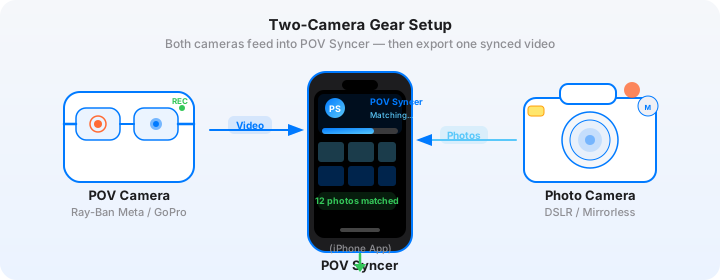
The GoPro Hero 13 + Fujifilm X100VI combination solves this by specializing each device. The GoPro runs continuously, capturing your movement, the environment, and everything happening around you. The X100VI is what you raise to your eye when something is worth a proper photograph — a market stall, a view across the city, a moment of light that lasts for three seconds.
The problem has always been the edit. You come home with GoPro footage and Fujifilm JPEGs and they live in completely separate worlds. You know a photo was taken at roughly the same time as a certain section of video, but matching them manually in a timeline editor takes time you don't have.
POV Syncer closes that gap. It reads the EXIF timestamp from every Fujifilm JPEG and places each photo at the exact moment it was taken in your GoPro footage. The matching is automatic. The result is a travel video where your photos aren't just attached as a gallery at the end — they appear at the precise moments they belong, embedded in the story as it happened.
Get the settings right the first time
Download the free POV Photographer's Cheat Sheet — camera settings, EXIF tips, and export presets for Ray-Ban Meta, GoPro, DJI, and Insta360 on one printable page.
Free PDF, no spam. Unsubscribe anytime.
The Gear: What Each Camera Brings
GoPro Hero 13 — The Always-On POV
The GoPro Hero 13 is the most capable standard Hero camera GoPro has made. The key specs for travel creators:
- 5.3K/60fps — enough resolution to reframe for any export format while keeping fluid motion
- HyperSmooth 6.0 — the stabilization handles walking, cycling, and bumpy transport without a gimbal
- Enduro battery — 3 hours of continuous 1080p recording is realistic in normal temperatures
- Max Lens Mod 2.0 compatibility — adds an even wider field of view for immersive first-person footage
- GPS timestamps — critical for precise EXIF matching with POV Syncer
For most travel shooting, set the GoPro Hero 13 to 4K/60fps with HyperSmooth on and let it record. The 4K setting gives you great quality with manageable file sizes, and 60fps means you have smooth slow-motion in post if you need it. Leave GPS enabled — that data is used by POV Syncer for the most accurate photo matching.
Fujifilm X100VI — The Considered Shot
The Fujifilm X100VI is a 40.2 megapixel APS-C camera with a fixed 23mm f/2.0 lens (35mm equivalent). It is the camera you reach for when you see something worth photographing properly. Its film simulations — Classic Chrome, Velvia, Acros, Eterna — produce JPEGs with distinctive color rendering that looks nothing like action camera footage, and that contrast is exactly what makes the photo overlays in POV Syncer so visually effective.
Set the X100VI to shoot JPEG Fine + RAW. Use the JPEGs as your import source in POV Syncer (they carry the same EXIF data and process much faster). Keep the film simulation consistent throughout a trip — Classic Chrome is an excellent default for travel because it renders colors with the kind of restrained, film-like quality that ages well.
Make sure the X100VI's date and time settings match your phone's local time, and set the UTC offset in the camera menu. This takes 30 seconds before a trip and saves significant editing headaches later.
Packing for a Two-Camera Travel Setup
Weight and pack size are the practical concerns that determine whether a two-camera setup is actually sustainable for travel. The good news is that this particular combination is genuinely compact.
What You Are Carrying
- GoPro Hero 13 body: 154g with battery
- GoPro chest mount or head mount: 100–200g depending on style
- 2x GoPro Enduro batteries + charger
- Fujifilm X100VI body: 521g with battery and card
- 2x NP-W235 batteries for X100VI
- 64GB UHS-I cards for both cameras (2x each)
The X100VI fits in a jacket pocket or a small shoulder bag alongside the GoPro accessories. Total camera kit weight under 1.5kg. For comparison, a mirrorless camera with a single zoom lens starts at 1.2kg before accessories.
The Daily Carry Workflow
Morning: charge both cameras overnight. Before leaving, check that both cameras show the correct local time. Mount the GoPro on a chest mount or hold it on a short grip. Drop the X100VI on a wrist strap or neck strap — somewhere immediately accessible, not buried in a bag.
During the day: let the GoPro record. Replace batteries as needed (the Enduro battery lasts about 2 hours at 4K). Pick up the X100VI when something is worth a proper frame. Shoot in burst mode if you are chasing decisive moments — the X100VI can do 20fps in electronic shutter mode, which is more than enough to catch fleeting expressions or movement.
Evening: transfer files to your iPhone using a USB-C card reader for the GoPro and an SD card reader for the Fujifilm. Import into POV Syncer and build the next day's video while the day is still fresh.
Daily Shooting Workflow
Structuring Your GoPro Footage
The GoPro Hero 13 records in chapters — files are split at approximately 4GB (around 12 minutes at 4K/60fps). For a full day of travel, you will accumulate many of these files. Before importing into POV Syncer, decide which sections of footage you want to use and either trim them in the GoPro app or import the specific files rather than the entire day's worth.
A useful habit: when you are about to take a photo with the X100VI, say the location or a brief description into the GoPro's microphone. "At the fish market now." This creates an audio cue in the footage that helps you find the right section when editing, and if you later add AI narration in POV Syncer, these spoken cues help you write the narration script accurately.
Fujifilm Color Profiles in Video Context
This is where the aesthetic magic happens. When a Fujifilm Classic Chrome JPEG appears as a photo overlay over GoPro 4K footage, the color difference is immediately apparent and intentionally striking. The GoPro footage has that action camera look — bright, saturated, slightly over-processed by the Flat or Vivid color profile. The Fujifilm photo has a different character entirely.
That contrast tells the viewer something: this photo represents a deliberate decision to stop and look. It is a different kind of seeing than the continuous video. Most viewers feel this without being able to articulate it, and it is part of what makes the format compelling.
For YouTube long-form content, you can lean into this further by briefly stepping out from behind the GoPro when you are about to photograph something — showing in the video that you are raising the camera — and then cutting to the resulting photo overlay. It turns the act of photography into part of the vlog narrative.
Syncing GoPro Hero 13 Footage with Fujifilm Photos in POV Syncer
Here is exactly how the sync process works in POV Syncer for this camera combination.
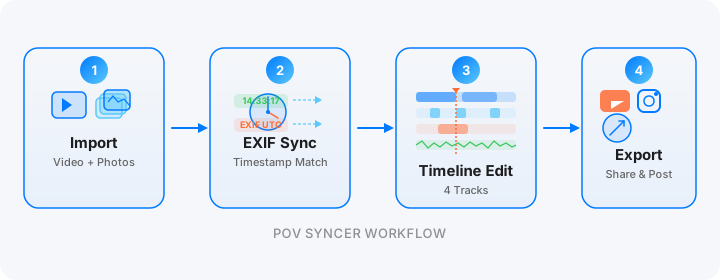
Step 1: Import
Open POV Syncer and create a new project. Select your GoPro Hero 13 MP4 (or chain multiple chapter files for a Pro project). Then select your Fujifilm X100VI JPEGs. POV Syncer supports batch import — select all the photos from the day in one go.
Step 2: Automatic EXIF Matching
POV Syncer reads the EXIF DateTimeOriginal from each Fujifilm JPEG. It then cross-references these timestamps against the GoPro video's file creation time and any embedded GPS metadata. For the GoPro Hero 13 with GPS enabled, the GPS-corrected UTC timestamp is the most reliable matching source — it is not subject to the minor clock drift that affects the GoPro's internal clock during long recordings.
The result is a photo placed at the exact second it was taken in the video. For a camera combination where both devices are using accurate time sources, matching accuracy is typically within 1 to 2 seconds.
Step 3: Timeline Editing
POV Syncer's 4-track timeline shows your video on the main track, with photos, titles, voice narration, and effects on separate tracks. For travel content, the typical workflow is:
- Review the auto-matched photo placements and trim any that fall at awkward moments
- Add location title cards using the Titles track — city names, neighborhoods, times of day
- Record or generate AI narration for key moments
- Choose a background style that complements the Fujifilm aesthetic
Step 4: Fujifilm Color in Video Overlays
When you display a Fujifilm Classic Chrome JPEG over GoPro footage in POV Syncer, the difference in color rendering is part of the visual appeal. To make the most of it, choose background styles in POV Syncer that do not compete with the photo — the minimal dark background or the clean white background work best, letting the Fujifilm color palette speak for itself.
In POV Syncer Pro, you have 10 background styles and 15 fonts to work with. For travel content targeting YouTube and Instagram, the approach that works most consistently is a clean background with a subdued serif font for location captions — it reads as intentional and editorial rather than social media template.
Storytelling for Travel Vlogs
The Three-Act Structure for a Day Vlog
Even a casual travel vlog benefits from structure. For a single-day edit, the most natural structure is:
- Morning arrival or beginning. GoPro footage of getting to the first location, establishing the context. 30–60 seconds.
- The main event. The bulk of the footage with photo overlays appearing at meaningful moments. 2–4 minutes.
- End of day reflection. A final location, a final photo, a brief narration tying it together. 30–45 seconds.
At this length — 3 to 5 minutes — you have a YouTube video that holds attention without overstaying its welcome, and you have natural cut points where Instagram Reels clips can be extracted.
Using AI Narration to Add Context
The most valuable use of POV Syncer's AI voice narration for travel content is adding information that the footage cannot show — the name of the location, historical context, what you were thinking when you took a particular photo. This transforms a visual record into something that teaches the viewer something.
Write the narration in the Voice track aligned to the moments it refers to. Keep each narration segment to 10 to 20 seconds — long enough to say something meaningful, short enough that the footage does not feel like it is just illustrating an audio essay.
Exporting for YouTube and Instagram
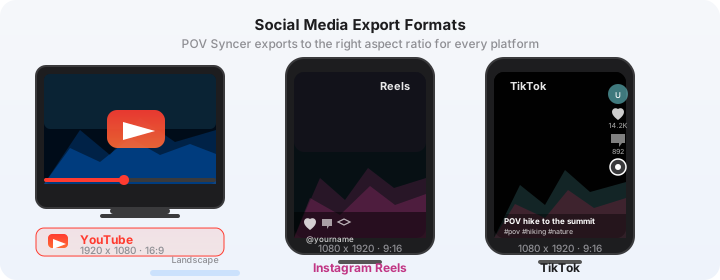
For YouTube long-form, export at 4K 16:9 from POV Syncer using the YouTube preset. For Instagram Reels, use the 9:16 Reels preset — you will get a vertically-framed crop of the footage with the photo overlays repositioned to fit the vertical frame. If your GoPro footage was shot at 4K, there is enough resolution to crop vertically without losing quality.
Export both formats from the same POV Syncer project. Save the project — POV Syncer preserves all your media, edits, and settings — and you can come back to make adjustments without reimporting or redoing the matching.
Build your travel vlog workflow today
POV Syncer is free to download. Your first project — one video, one batch of photos, automatic EXIF matching — is free. Upgrade to Pro for multi-clip editing, unlimited projects, AI narration.
Download POV Syncer FreePro: $9.99/month or $99.99/year — 2 months free with annual
Tips for Best Results
GoPro Hero 13 Settings for Travel
- Resolution: 4K/60fps for most situations; 5.3K/30fps if you need maximum reframing room
- HyperSmooth: On (Boost mode if mounting on a chest mount while walking)
- Color: Flat if you plan to color grade; Natural if you want minimal post-processing
- GPS: Always on — critical for accurate EXIF matching
- Microphone: Wind Reduction on in outdoor settings
Fujifilm X100VI Settings for Travel
- File format: JPEG Fine + RAW (import JPEGs into POV Syncer)
- Film simulation: Classic Chrome for general travel; Velvia for landscapes; Acros for street
- ISO: Auto ISO up to 6400 — the X100VI sensor handles this well
- Date/Time: Set UTC offset in camera menu before the trip
- Electronic shutter: Enable for silent shooting in museums, ceremonies, quiet spaces
Time Sync Before Every Session
The single most important habit for getting clean EXIF matching is checking that both cameras show the same time before you start shooting. Take 10 seconds: wake up the GoPro app on your phone (which syncs the GoPro clock), then glance at the time on your X100VI. If they match to the minute, you are ready. If not, update the X100VI in the camera menu.
What a Finished GoPro Hero 13 + Fujifilm X100VI Video Looks Like
Picture a 4-minute YouTube video from a single day in Lisbon. The GoPro footage opens on the walk through Alfama — cobblestones, narrow stairs, morning light through laundry-strung alleys. HyperSmooth keeps the footage steady despite the uneven ground.
At the 45-second mark, as you arrive at a viewpoint, a Fujifilm Classic Chrome photo appears: the city below, warm morning haze, the kind of photograph that stands entirely on its own. Caption: "Miradouro de Santa Luzia, 8:20am." Three seconds. Then back to video.
This pattern repeats throughout — video as the connective tissue, photos as the punctuation marks. AI narration adds context at two or three moments. The outro is a final photo, held for four seconds with a simple location card, then the GoPro footage fades to black.
Viewers watch it to the end because there is always something coming — a photo, a narration beat, a new location. The format creates natural forward momentum that a pure video or a pure slideshow cannot replicate.