Why Insta360 X4 Users Need a Better Editing Workflow
You shoot with the Insta360 X4 because you want everything captured — 360 degrees, 8K resolution, the whole scene with nothing left out. But here is the problem that almost every Insta360 creator runs into: the 360 footage is just the raw material. The story is in the edit.
Most Insta360 X4 editing workflows stop at reframing. You scrub through the 360 sphere in Insta360 Studio, pick your angles, punch in for emphasis, and export a 16:9 or 9:16 clip. That works fine. But if you are also carrying a dedicated stills camera — say, a Ricoh GR IIIx for street photography — you end up with two separate bodies of work that never talk to each other.
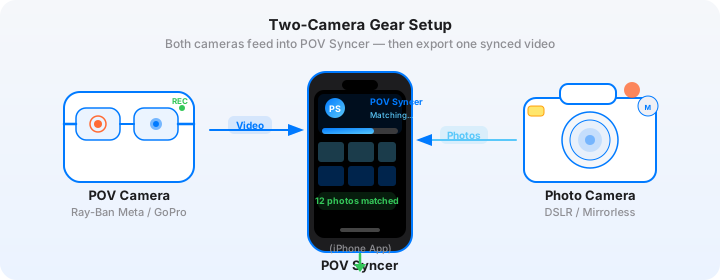
Your video shows the environment, the movement, the energy of a place. Your photos show the decisive moments, the frames you chose to freeze. Together they tell a complete story. The challenge has always been connecting them — matching which photo belongs at which point in the video — without spending an hour doing it manually in a desktop editor.
That is where POV Syncer comes in. It reads the EXIF timestamps embedded in your Ricoh GR IIIx JPEGs and matches each photo to the exact second it was taken in your Insta360 X4 footage. No guesswork. No manual alignment. Just import, match, and edit.
Get the settings right the first time
Download the free POV Photographer's Cheat Sheet — camera settings, EXIF tips, and export presets for Ray-Ban Meta, GoPro, DJI, and Insta360 on one printable page.
Free PDF, no spam. Unsubscribe anytime.
The Insta360 X4 + Ricoh GR IIIx Setup
This camera combination is one of the most compact, capable setups available for street photography and travel content. Here is what each device brings to the table.
Insta360 X4 Specifications
The Insta360 X4 shoots at up to 8K/30fps in 360 mode, and 4K/60fps when used as a single-lens action camera. For reframed POV content, 5.7K/60fps gives you enough resolution to punch in and still export at 4K without losing quality — which is the sweet spot for content you plan to reframe for TikTok or YouTube Shorts.
The X4 handles low light better than most 360 cameras at its size, with an f/1.9 aperture on both lenses and active HDR mode. For street shooting during golden hour or in covered markets, that matters. Battery life is strong at around 135 minutes of 5.7K recording, though in practice you will want the Insta360 X4 power accessory for full-day shoots.
Ricoh GR IIIx Specifications
The Ricoh GR IIIx pairs a 40mm equivalent f/2.8 lens with a 26.1 megapixel APS-C sensor in a body that fits in a shirt pocket. It shoots JPEGs with excellent color straight out of camera, and its EXIF data is comprehensive — which is exactly what you need for automatic photo syncing.
Set the GR IIIx to shoot JPEG Fine at the highest resolution. You can shoot RAW simultaneously, but POV Syncer reads EXIF timestamps from whichever file format you import, so JPEG works perfectly and imports faster. Make sure the camera's time zone is set correctly to match your phone or Insta360 camera — this is the most common source of sync errors and it is completely preventable.
Why These Two Work Together
The Insta360 X4 captures everything that is happening around you. The Ricoh GR IIIx captures the one thing worth remembering. When you combine them in POV Syncer, the video provides context and immersion while the photos provide the emotional anchor — the frame that says, "this is what I was looking at."
The size also matters. Both devices are small enough to carry all day without the camera bag becoming the subject of your trip.
The Reframing Challenge (And How to Work Around It)
Here is something the Insta360 marketing doesn't emphasize: 360 footage requires a reframing step before you can do anything else with it. Raw .insv files from the X4 are not directly importable into most editors because they contain both lenses' data in a proprietary format.
Step 1: Reframe in Insta360 Studio First
Your workflow should start in Insta360 Studio (free desktop app, or use the Insta360 app on iPhone). Reframe your footage to 16:9 for YouTube or 9:16 for TikTok and YouTube Shorts. Export at 4K. This becomes your working video file.
A practical tip: if you plan to share in both landscape and vertical formats, export both versions before you move to POV Syncer. That way you can create one project per aspect ratio and the photo placements will look natural in both.
Step 2: Import into POV Syncer
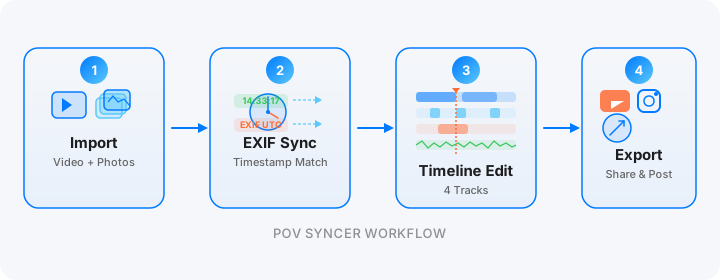
Once you have your reframed MP4 from Insta360 Studio, open POV Syncer and create a new project. Import the reframed MP4 as your video source, then select the photos from your Ricoh GR IIIx.
POV Syncer reads the EXIF DateTimeOriginal from each JPEG and matches it against the video's file creation timestamp. The matching uses four separate strategies to handle edge cases like GPS-corrected UTC times and timezone offsets — so even if your Insta360 and Ricoh clocks are set slightly differently, the algorithm finds the right match within a configurable tolerance window.
EXIF Sync Across Brands: What You Need to Know
Syncing across different camera brands is where a lot of creators give up and go back to manual alignment. The Insta360 X4 and Ricoh GR IIIx both embed EXIF timestamps, but they do it slightly differently.
Insta360 X4 Timestamp Behavior
The X4 uses the time from your connected smartphone to set the camera clock. This means if your phone is set to your local timezone with automatic time enabled, the X4's footage timestamp will also be correct for your local time. The reframed export from Insta360 Studio preserves the original file creation timestamp.
Ricoh GR IIIx Timestamp Behavior
The GR IIIx stores timestamps in EXIF DateTimeOriginal without a UTC offset unless you have explicitly set the timezone in the camera menu. This is the important setting: go to your GR IIIx menu, find Date/Time, and set the UTC offset. With that set, POV Syncer can use the OffsetTimeOriginal EXIF field for pinpoint accuracy.
The 5-Second Rule
In practice, you will almost never have perfectly synchronized clocks between two separate cameras. POV Syncer uses a tolerance-based matching system — by default it will match a photo to the nearest video moment within a 30-second window, but you can narrow this to 5 seconds if your clocks are well-synced. The tighter the tolerance, the more precise and meaningful each photo placement becomes.
The simplest way to sync your cameras at the start of a session: take a photo of a watch or clock face with the GR IIIx and record the Insta360 X4 at the same moment. Any offset becomes immediately obvious and you can manually adjust in POV Syncer's timeline editor.
Photo Overlays on 360 Footage: What Works Visually
When you place a Ricoh GR IIIx photo over reframed Insta360 X4 footage, the visual contrast between the two is striking — in a good way. The 360 footage has a wide, environmental feel, while the GR IIIx photo has a classic street photography frame with a specific point of view.
Background Styles That Work for Street Photography
In POV Syncer, choose a background style that complements rather than competes. For street photography, the clean dark backgrounds or subtle blur treatments work best — they let the photo be the subject without fighting with the video beneath it. Choose from 10 background styles in POV Syncer Pro to find what suits your aesthetic.
Font Choices for an Urban Feel
If you are adding location titles or captions to your photo overlays, lean toward clean sans-serif fonts. POV Syncer Pro includes 15 premium fonts — the condensed display options read well at the sizes used in social video, and they feel at home alongside street photography imagery.
Timing Photo Displays
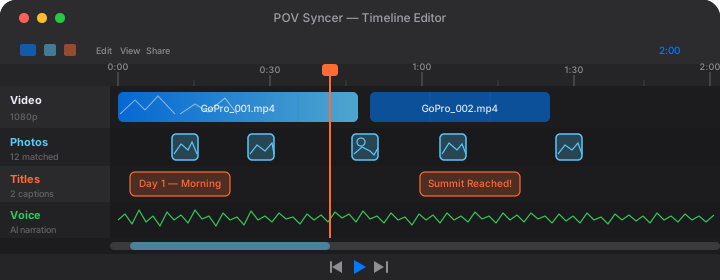
A photo overlay that sits on screen for 2 to 3 seconds is long enough for viewers to register what they are looking at without stopping the momentum of the video. In the POV Syncer timeline editor, you can drag the in and out points of each photo clip to fine-tune the duration. Use the 4-track timeline to align photo reveals with natural pauses in the video — a moment when the camera slows, a turn, a pause before entering a new scene.
Exporting for TikTok Vertical Format
If you reframed your Insta360 X4 footage to 9:16 in Insta360 Studio, you are already set up for TikTok. In POV Syncer, select the TikTok export preset from the social export options. This outputs at 1080x1920 pixels with the correct bitrate and frame rate for TikTok's encoding requirements.
Horizontal vs. Vertical Photo Overlays
The Ricoh GR IIIx shoots in 3:2 aspect ratio, which means your photos will have letterboxing when displayed in a 9:16 frame. This is actually a feature, not a bug — the letterboxed presentation gives the photo overlay a cinematic, deliberate feel that works well on TikTok where viewers are accustomed to seeing horizontal content in vertical feeds.
If you prefer the photo to fill the full frame, POV Syncer's background styles include options that extend the photo edges rather than showing black bars — a blurred version of the photo fills the sides, keeping the composition intact without the distraction of solid black.
AI Narration for Vertical Content
TikTok and YouTube Shorts reward content that explains itself without requiring viewers to read captions. Adding AI narration through POV Syncer is the fastest way to add a voiceover that contextualizes your photos — "This was taken in the covered market in Kyoto, around 7am before the crowds arrived" — without recording audio separately or worrying about background noise from your on-camera mic.
POV Syncer Pro includes AI voice narration with multiple voice options. Write your narration text in the Voice track on the timeline, set the timing, and export with the audio baked in.
A Complete Insta360 X4 Editing Workflow
Here is the full workflow from capture to publish:
- Set clocks. Before your session, check that your Insta360 X4 (via the connected app) and your Ricoh GR IIIx are both showing the same local time. Set the UTC offset on the GR IIIx.
- Shoot. Wear or mount the Insta360 X4 for continuous 360 capture. Carry the GR IIIx and shoot stills whenever something catches your eye.
- Reframe in Insta360 Studio. Export your best sections as 4K MP4. Choose 9:16 for TikTok/Shorts or 16:9 for YouTube.
- Import into POV Syncer. Select the MP4 and your GR IIIx JPEGs. POV Syncer auto-matches photos to video timestamps.
- Edit the timeline. Fine-tune photo timing, add titles, add AI narration, choose background styles.
- Export and share. Use the TikTok, Instagram, or YouTube preset. Share directly from the app.
The whole post-production process — steps 3 through 6 — takes under 30 minutes for a typical 2 to 3 minute video. That is the realistic benchmark once you know the workflow.
Tips for Best Results with Insta360 X4
Use 5.7K/30fps for Most Reframing
8K gives you more reframing room, but the file sizes are enormous and Insta360 Studio processes them slowly on most computers. 5.7K/30fps gives you plenty of resolution to punch in and still export at 4K — use this as your default mode unless you specifically need the extra pixels.
Enable GPS on the X4
Turning on GPS in the Insta360 X4 adds GPS timestamps to the footage metadata. POV Syncer can use GPS UTC timestamps as one of its matching strategies, which tends to be more accurate than relying on the internal clock alone. Worth the slight battery hit.
Shoot the GR IIIx in JPEG Fine Mode
JPEG Fine mode on the GR IIIx delivers excellent image quality with fast processing, smaller file sizes, and complete EXIF data including all timestamp fields. You can shoot RAW+JPEG if you want to have the RAW files for post-processing, but use the JPEGs as the import source in POV Syncer for fastest matching.
Use a Card Reader, Not Wireless Transfer
Both the Insta360 X4 and the Ricoh GR IIIx support wireless file transfer via their companion apps, but for large video files the speeds are impractical. Use a USB-C card reader to transfer your Insta360 footage to your computer and your GR IIIx files to your iPhone via a Lightning or USB-C SD card reader. POV Syncer can import directly from your iPhone's Files app or Photos library.
What the Finished Video Looks Like
Imagine a 90-second TikTok about a morning in Tokyo's Yanaka neighborhood. The reframed Insta360 X4 footage plays in 9:16, showing you walking narrow alleys between old wooden houses. The footage has that smooth, wide-angle POV quality that makes viewers feel like they are there.
At the 18-second mark, as you slow down in front of a temple gate, a Ricoh GR IIIx photo appears — the gate itself, shot from slightly lower, the kind of deliberate composition that only a dedicated camera produces. The photo sits on screen for 2.5 seconds with a simple caption in a clean sans-serif font: "Yanaka, 7:12am." Then it fades and the video continues.
That juxtaposition — the immersive video and the precise photograph — is what makes this format compelling. You are not just showing viewers a place. You are showing them how you see it.
Ready to try this workflow?
POV Syncer is free to download. Import your Insta360 X4 footage and Ricoh GR IIIx photos and see the automatic EXIF matching in action.
Download POV Syncer FreePro unlock: $9.99/month or $99.99/year