Ray-Ban Meta Gen 2 Best Video Settings for Street Photography
You get home after a two-hour street session, plug in your Ray-Ban Meta Gen 2, and transfer the footage to your phone. Then it hits you: the video is soft. Or the colors are blown out. Or the battery died forty minutes in and you missed the best light of the afternoon. You had the glasses. You had the session. But the settings were wrong — and now you are going to spend another hour trying to salvage footage that should have been automatic.
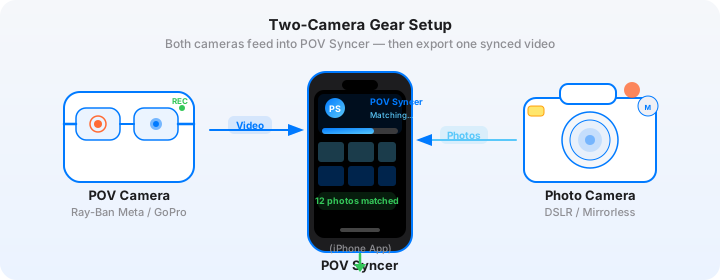
I have been shooting street photography with Ray-Ban Meta Gen 2 for over a year now, pairing the footage with stills from cameras like the Fujifilm X100VI, Ricoh GR IIIx, and Leica Q3. In that time I have worked through every available setting combination in the Meta View app — resolution, frame rate, color, storage, battery — and I know exactly what works on the street and what does not.
This is the complete technical guide I wish had existed on day one. We will cover every setting that matters, why each choice affects your finished video, and exactly which combination to use for each street shooting scenario.
Get the free POV Photography Cheat Sheet
One printable page covering optimal Ray-Ban Meta Gen 2 settings for 20+ street photography scenarios — plus EXIF sync tips and export presets for Instagram and YouTube.
Free PDF, no spam. Unsubscribe anytime.
Understanding What the Ray-Ban Meta Gen 2 Actually Captures
Before getting into specific settings, it helps to understand the hardware constraints you are working within. The Ray-Ban Meta Gen 2 has a 12-megapixel camera built into the right temple, positioned where a regular human eye sees from — roughly 65mm to the right of your nose bridge. The lens is a fixed wide-angle equivalent to approximately 21mm on a full-frame sensor.
The sensor is small by dedicated camera standards, which has two practical consequences. First, dynamic range is limited: expect to lose highlight detail in bright windows or blown-out sky patches when shooting in challenging light. Second, noise becomes a real issue above ISO 800, which the camera does not let you set manually anyway — it handles ISO automatically, for better or worse.
What the hardware excels at is capturing continuous, hands-free, first-person video without drawing any attention to itself. Nobody knows you are recording. That documentary invisibility is the entire value proposition for street photographers, and it shapes every settings decision we are going to discuss.
Resolution: 1080p vs 720p — the Answer Is Almost Always 1080p
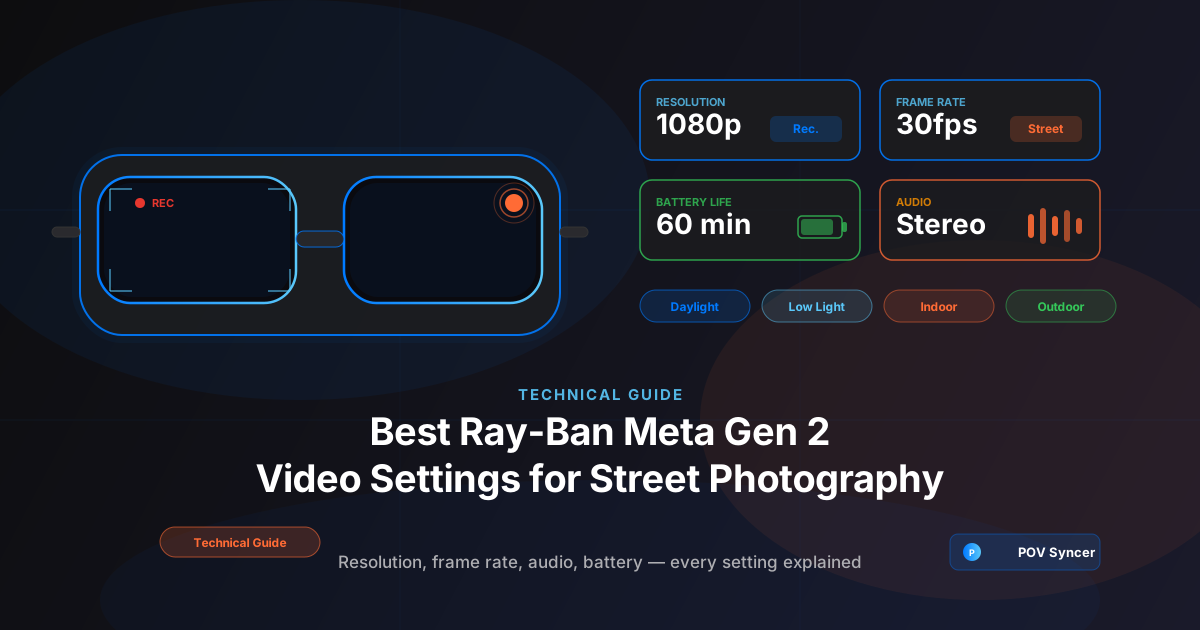
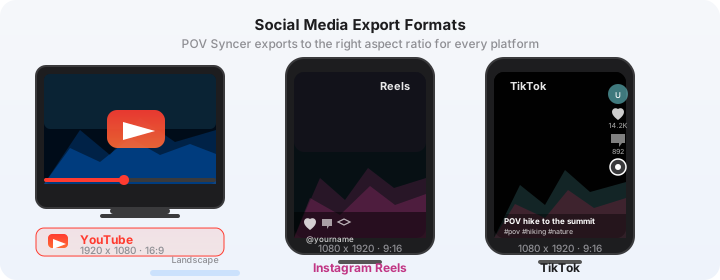
The Meta View app offers two video resolution options: 1080p (1920x1080) and 720p (1280x720). For street photography content intended for Instagram Reels, YouTube, or TikTok, you want 1080p in nearly every situation.
Here is why. When POV Syncer combines your glasses footage with photo overlays from your street camera, the finished video is rendered at 1080p. If your source footage is only 720p, the upscaling introduces softness that becomes especially noticeable when a crisp Fujifilm X100VI JPEG or Ricoh GR IIIx RAW appears on screen at the same time. The quality mismatch is jarring on a modern phone display.
When 720p Makes Sense
720p has one genuine use case: extreme battery conservation. If you are on a full-day street session — say, six or seven hours in Tokyo or London — and you do not have access to the charging case during the day, shooting 720p extends your recording window by roughly 25%. On a marathon day with no charging option, that extra time matters more than the resolution advantage.
For normal street sessions of one to three hours, stick with 1080p. The battery will last the session and the footage quality is meaningfully better on screen.
Frame Rate: 30fps vs 60fps for Street Photography
This is the setting that most street photographers get wrong. The Ray-Ban Meta Gen 2 shoots at either 30fps or 60fps. The instinct is to choose 60fps because more frames means smoother video, right?
On a GoPro mounted on a helmet during a mountain bike run, yes. For street photography process documentation, no.
Why 30fps Is the Street Photography Setting
60fps footage has a quality that cinematographers call the "soap opera effect" — hyper-smooth motion that reads as video rather than film. It is the look of reality TV and sports broadcasts. Street photography, as a genre, has always drawn visual language from documentary film and photojournalism. The content feels more authentic at 24fps or 30fps.
At 30fps, the slight natural blur in pedestrian motion, the camera micro-movements as you walk, the way a scene comes in and out of frame — all of this reads as genuine, documentary observation. At 60fps the same footage can look weirdly smooth and processed, like a commercial for the neighborhood rather than an honest document of it.
When 60fps Works on the Street
60fps earns its place in two specific street scenarios. First, if you plan to use slow motion in your edit — dropping 60fps footage to half speed in the timeline — you can create elegant slow-motion sequences of a cyclist passing, a crowd crossing an intersection, or steam rising from a food stall. This is a deliberately stylistic choice, not the default recording mode.
Second, if you are shooting a high-activity environment — a festival, a market, a sports event — where subjects are moving unpredictably in multiple directions, 60fps gives you a little more forgiveness to stabilize shaky walking footage in post.
For everything else — a standard street walk with your Leica Q3, Nikon Zf, or any other street camera — 30fps is the setting.
Meta View App Settings: What to Configure Before You Shoot
The Meta View app on your iPhone is where all the pre-session configuration happens. Open it before every session and confirm these settings — some can reset between firmware updates.
Video Quality Setting
In Meta View, go to your glasses settings and find the Video Quality menu. Set this to 1080p 30fps as your baseline. The app labels these clearly. Note that the glasses themselves do not have a display to confirm settings — the app is the only interface, so verify before you leave the house.
Capture Mode: Auto vs Manual
The Gen 2 can be triggered either by a long press on the right temple (manual capture) or by pressing the capture button you have assigned. For street photography, manual capture — deliberate long-press to start, short press to stop — gives you the most control. You are already making intentional decisions with your street camera; approach the glasses footage the same way.
Avoid leaving the glasses in continuous record mode across an entire multi-hour session. Beyond the obvious battery drain, you end up with vast amounts of footage that includes nothing interesting — long walks between scenes, time spent in cafes, phone checks. Starting and stopping around productive sequences keeps your footage dense and dramatically reduces editing time later.
Color and HDR
As of the current Meta View firmware, there is no manual white balance control or flat picture profile for the Gen 2. The camera applies automatic white balance and its own color science, which tends toward warm tones and moderate contrast.
For street photography, this default color profile is workable — the warm, slightly punchy look actually complements black-and-white or film-simulation JPEGs from cameras like the Ricoh GR series or Fujifilm X cameras. If you are shooting a camera like the Sony A7C II or Canon R6 III where you have more control over JPEG output, consider matching the warmth of your stills to the glasses footage to reduce the visual gap between the two.
Download POV Syncer Free — Create your first POV video in 60 secondsAudio Settings and Microphone Optimization
The Ray-Ban Meta Gen 2 has five microphones arranged across the frame, optimized for clear voice capture during calls. For street photography footage, this microphone array behaves differently than you might expect — and understanding it helps you use it deliberately.
The Microphone Array and Street Sound
Because the five microphones are designed to prioritize the wearer's voice, they apply noise reduction that can reduce the richness of ambient street sound. City traffic, market crowds, coffee shop acoustics — the textures that make a street photography POV video feel lived-in — can sound slightly compressed compared to a standalone recorder or a GoPro Hero 13 with wind protection.
This is not a reason to avoid audio; it is a reason to use it thoughtfully. The glasses capture clear, intelligible ambient sound at a moderate level. For street photography process videos, that is usually enough. You are not trying to capture a concert or an interview — you want the viewer to feel present on the street, and the Gen 2 audio absolutely delivers that.
Wind Noise on the Street
Wind is the Gen 2's biggest audio weakness. Above moderate wind speeds, the five microphones pick up handling and wind noise that can overwhelm the ambient street sound. This is most noticeable in open plazas, on bridges, and anywhere urban wind channels form between buildings.
The Meta View app does not offer a manual wind reduction setting. The built-in noise processing handles mild wind reasonably well, but in genuinely windy conditions plan to either add music in POV Syncer's timeline to cover the audio, or use the AI narration track as the primary audio layer over the ambient sound. Both approaches work well.
Practically, if it is a windy day, shoot shorter clips more deliberately rather than long continuous takes. The audio degrades on long windy runs, but a tight five to ten second clip of an interesting scene — captured when you are momentarily sheltered — often has perfectly clean audio.
Stabilization and the Physical Reality of Handheld POV
The Ray-Ban Meta Gen 2 has no optical or electronic image stabilization. The footage reflects your actual physical movement — and for street photography, this is both a challenge and an opportunity.
Walking Technique for Smooth Footage
The footage will be smoother if you walk heel-to-toe rather than flat-footed, keep your pace steady and unhurried, and avoid looking down at your street camera's LCD between shots. The last point bears repeating: every time you look down at the rear screen to check a shot, the glasses footage drops to a downward angle — visually dead. Review shots at the end of the session, not during it.
Gentle, purposeful movement reads well on screen. A fast-walking, erratic gait produces footage that can feel anxious rather than observational. Slow down 15-20% from your normal walking pace when you know you are recording a scene. It makes a notable difference.
Electronic Stabilization in Post
POV Syncer does not apply stabilization to the video track — the footage is used as captured. If you need stabilized output, you can pre-process the footage through Apple's built-in stabilization before importing, though this crops the frame slightly. For most street photography scenarios, the natural handheld movement is preferable: it communicates genuine, in-the-moment observation rather than a produced, polished look.
Storage Management: The Settings Nobody Talks About
The Ray-Ban Meta Gen 2 has 32GB of internal storage. At 1080p 30fps, you get roughly 90-100 minutes of recording before storage fills. At 720p you stretch that to around 130 minutes. Either way, storage management matters on a long street session.
Transfer and Clear Before Every Session
This sounds obvious but it catches people consistently: the glasses do not alert you when storage is nearly full. They silently stop recording mid-clip. On the street, you will not realize the glasses stopped capturing until you are already in a new situation — and the moment you thought you captured is gone.
Before every session, open Meta View, transfer any footage to your phone, and delete the transferred files from the glasses. Make this as habitual as charging the battery. It takes about two minutes and ensures you start every session with a clean buffer.
Transfer via Meta View vs USB
For sessions under 45 minutes, transfer via the Meta View app over Bluetooth is fast enough. For longer sessions with 30 or more minutes of footage, USB transfer to a Mac or PC is substantially faster. Keep the USB-C cable in your bag on long shooting days — it makes the end-of-day transfer much less tedious.
Battery Optimization: Getting the Most from Every Charge
Battery management is arguably the most important setting consideration for street photographers. A session that runs out of power at the wrong moment cannot be recovered.
Real-World Battery Performance by Setting
- 1080p 30fps continuous recording: approximately 55-65 minutes
- 1080p 30fps start/stop recording: approximately 80-90 minutes of session time (less total footage, longer time between charges)
- 720p 30fps continuous recording: approximately 70-80 minutes
- 720p 30fps start/stop: approximately 100-110 minutes of session time
- Standby only (no recording): approximately 3-4 hours
The start/stop habit — recording only when something interesting is happening — is the single most effective battery conservation technique. It also, incidentally, makes your editing much faster because you are working with dense, high-interest footage rather than long undifferentiated runs.
The Charging Case as Mid-Session Battery
The Ray-Ban Meta charging case holds approximately four additional charges. On a full-day street session, put the glasses in the case at every extended break — a coffee stop, a lunch, a subway ride — and you effectively have unlimited battery for the day. A 10-minute case charge gives the glasses roughly 20 additional minutes of recording time.
The case is small enough to fit in a jacket pocket. If you are doing serious street work, carry it.
Want settings cheat sheets for 20+ camera combos?
Join 1,000+ photographers getting weekly tips on POV video, camera settings, and EXIF sync workflows. New camera combo guide every week.
Free, no spam. Unsubscribe anytime.
Scenario-Specific Settings Recommendations
Now that the fundamentals are clear, here are exact settings for the four main street photography scenarios. Bookmark this section — you will come back to it.
Scenario 1: Bright Daylight (Midday, Open Streets)
This is the hardest lighting condition for the Ray-Ban Meta Gen 2 because the automatic exposure system tends to blow out highlights — bright sky patches, white building facades, reflective surfaces. The camera does not have a ND filter equivalent.
- Resolution: 1080p
- Frame rate: 30fps
- Technique: Face away from direct sun when starting a recording clip. The camera meters from the center of the frame, so a sky-heavy composition will underexpose everything below the horizon.
- Street camera pairing: Any camera with an ND filter (Fujifilm X100VI built-in ND, DJI Action lens filter) helps keep your stills consistent with the glasses footage's exposure behavior in bright light.
- Battery note: Direct sunlight accelerates battery discharge slightly. On hot, sunny days, the 60-minute estimate may drop to 50 minutes at sustained brightness.
Scenario 2: Low Light (Golden Hour, Dusk, Night Street)
Low light reveals the physical limits of the Gen 2's small sensor — noise appears at any ISO above roughly 800, and the automatic system will push ISO well past that in dim conditions. That said, low-light street footage from the Gen 2 has a gritty, high-contrast quality that actually suits the genre. Lean into it rather than fight it.
- Resolution: 1080p — do not drop to 720p thinking it will help noise; it will not, and you lose the resolution advantage
- Frame rate: 30fps (lower shutter speed floor than 60fps, which slightly helps exposure in dim light)
- Technique: Record in short clips around light sources — illuminated storefronts, street lamps, neon signs. These give the footage natural highlights that compensate for the noisy shadow areas.
- Street camera pairing: Pairs particularly well with cameras that excel in low light: the Sony A7C II, Nikon Zf, or Fujifilm X-T5. The stills can be clean while the glasses footage has intentional grain — the contrast works visually.
- Battery note: Cold weather combined with low-light shooting (which the camera handles by opening the shutter longer) can reduce battery to 45-50 minutes. Carry the case.
Scenario 3: Indoor Environments (Cafes, Markets, Galleries)
Indoor shooting with the Gen 2 requires the most deliberate approach. The automatic white balance shifts significantly between fluorescent, LED, and warm tungsten lighting — sometimes within the same space. And recording video inside a private venue may require permission in some jurisdictions.
- Resolution: 1080p
- Frame rate: 30fps. Avoid 60fps indoors — under fluorescent or LED lighting at 60fps you can encounter subtle flicker artifacts depending on the local power frequency (50Hz in Europe and Asia, 60Hz in North America).
- Technique: Let the camera settle on white balance by pointing toward the dominant light source for a few seconds before starting your actual clip. The automatic system needs a moment to lock.
- Color note: Warm tungsten indoor environments give the footage a film-like amber quality that is genuinely beautiful — do not fight it in post. It pairs especially well with black-and-white stills from the Ricoh GR series.
- Audio note: Indoor environments produce the glasses' best ambient audio — relatively controlled acoustics, reduced wind, natural room tone. This is where the five-microphone array performs most consistently.
Scenario 4: Outdoor Overcast (The Street Photographer's Ideal Light)
Overcast light is the Ray-Ban Meta Gen 2's sweet spot. Even, diffuse illumination means the automatic exposure system does not have to work hard, dynamic range issues largely disappear, and the footage has a clean, neutral quality that works with any color grade or JPEG simulation.
- Resolution: 1080p
- Frame rate: 30fps for documentary look; consider 60fps if you want the option of slow-motion cuts in the edit
- Battery note: Optimal conditions. The automatic processing load is minimal, the sensor is not straining against high dynamic range, and you should hit the full 60-minute continuous recording estimate comfortably.
- Street camera pairing: Overcast light is universally flattering for stills. Any street camera — from iPhone 16 Pro to Leica M11 — produces excellent images. The visual consistency between the glasses footage and your stills will be at its best in these conditions.
From Settings to Finished Video: The POV Syncer Workflow
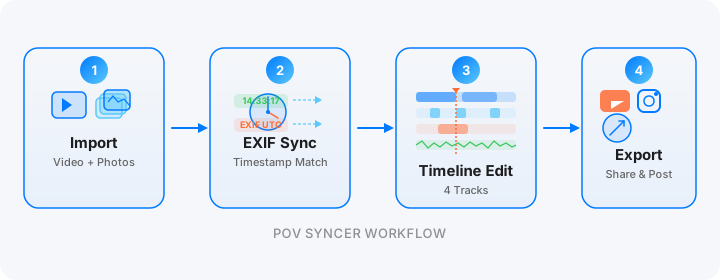
Good settings get you good raw material. What you do with that material determines whether it becomes a compelling video or sits unwatched in your camera roll. This is where the manual editing grind used to live — and where it no longer has to.
Before POV Syncer, the workflow for combining Ray-Ban Meta footage with street camera stills looked like this: import footage to Premiere Pro or Final Cut, import the stills, scrub through the video timeline to find where each photo was shot, manually drag the photo to that point, adjust duration, add a title card, render. For a 10-minute street session walk with 30 shots, that is 2-4 hours of tedious timeline placement. Per video.
Automatic EXIF Sync in Seconds
POV Syncer uses the EXIF timestamps in your camera's files — the exact second each shutter fired, embedded in every RAW and JPEG — to automatically match each photo to the correct frame in your glasses footage. You import the video, import the photos, and the app places every shot on the timeline where it belongs. What took hours now happens in under 60 seconds.
The four-strategy EXIF matching system handles timezone offsets, GPS UTC corrections, and cross-brand timestamp differences automatically. Whether you are pairing the glasses with a Fujifilm X100VI, a Ricoh GR IIIx, a Sony A7C II, or an iPhone 16 Pro, the sync works without configuration. The only prerequisite is that your street camera's clock is set correctly — sync it to your iPhone's time before each session.
Adding Context with Titles and Narration
Once the photos are placed, POV Syncer's timeline editor lets you add title cards in any of 15 premium fonts, record or generate AI narration over the footage, and adjust the duration each photo appears on screen. For a street photography process video, a clean location and date title at the opening, plus one or two cards noting camera settings or observations about the scene, is usually all you need. The photos and the footage tell the story — the titles provide context, not decoration.
The AI narration feature is particularly useful for photographers who want to add an artist's-statement quality to their work without recording their own voice. Type 50-100 words about your approach to the session or your thoughts on a specific image, select a voice that matches the measured, thoughtful tone of street photography content, and the narration renders in seconds.
See the POV Syncer features page for a full breakdown of the timeline editor's capabilities, or the pricing page to compare what is available in the free tier versus Pro.
A Quick Reference: Recommended Settings by Scenario
Here is the full settings matrix in one place. Screenshot this or refer back to the cheat sheet you grabbed earlier.
- Daylight outdoor: 1080p / 30fps / start-stop recording / carry charging case
- Low light / golden hour: 1080p / 30fps / short clips around light sources / expect grain, embrace it
- Indoor: 1080p / 30fps (not 60fps — avoids flicker) / let white balance settle at start of clip
- Overcast outdoor: 1080p / 30fps baseline (or 60fps if slow motion is planned) / ideal conditions for battery life
- Long session (4+ hours): 720p / 30fps / carry charging case / transfer and clear storage at every break
- Windy conditions: Any resolution / 30fps / short clips for better audio / plan to use music or AI narration to cover audio in edit
The Last Thing Most Guides Miss: Clock Discipline
Every technical consideration in this guide matters less than one simple habit: before every session, open your iPhone's Clock app, note the exact time to the second, and confirm your street camera's clock matches it precisely.
The Ray-Ban Meta Gen 2 syncs its clock automatically via the Meta View app connection to your iPhone. Your street camera — Fujifilm, Ricoh, Leica, Sony, Canon, Nikon — does not. It relies entirely on the time you set manually. A 10-second drift produces a slightly offset photo placement in the finished video. A 2-minute drift from an old camera battery makes the sync useless without manual correction.
Clock sync takes 30 seconds. Do it every session, and the automatic EXIF matching in POV Syncer will be accurate to within one or two seconds — imperceptible in the finished video. Skip it, and you are back to scrubbing through footage to find where each shot landed.
Everything else in this guide — resolution, frame rate, audio, battery — is in service of capturing good raw material. Clock discipline is what makes that raw material sync automatically in record time rather than requiring hours of manual editing.
Conclusion: Get the Settings Right Once, Then Shoot
The Ray-Ban Meta Gen 2 default settings are designed for casual social sharing, not for the specific demands of documentary street photography. A few deliberate choices — 1080p, 30fps, start-stop recording, a charged case in your pocket, and a synced camera clock — transform the glasses from a novelty into a genuine working tool.
Once those settings are locked in, the camera becomes invisible to your process. You wear it, you walk, you shoot with your street camera the way you always do. The footage captures itself. And when you are home with a session's worth of material, POV Syncer turns what used to be 2-4 hours of manual editing into a finished video in under 60 seconds — using the EXIF timestamps your camera already wrote to every shot.
That is the workflow. Get the settings right the first time, and everything after it is fast.
Turn your Ray-Ban Meta footage into a finished video in 60 seconds
Download POV Syncer free — automatic EXIF sync, 15 premium fonts, AI narration for Pro subscribers.
Free PDF, no spam. Unsubscribe anytime.