AI Voice Narration: From Words to Video
Six neural voices, rate and pitch controls, a Voice Library that remembers everything you've generated, and karaoke captions that bake in word-by-word. Here's the full workflow.
What you'll need
- POV Syncer Pro ($9.99/mo or $99.99/yr) — start a free trial from the Subscription tab
- An internet connection (the audio is rendered in the cloud via Azure Speech)
- A video already imported (see Quick Start)
The six voices
POV Syncer Pro gives you six Azure neural voices, all English:
- en-GB Sonia — warm British English female
- en-GB Ryan — neutral British English male
- en-US Jenny — friendly American English female
- en-US Guy — relaxed American English male
- en-AU Natasha — Australian English female
- en-AU William — Australian English male
All six are neural — much more natural than the older device TTS — and you can preview each one inside the app before committing.
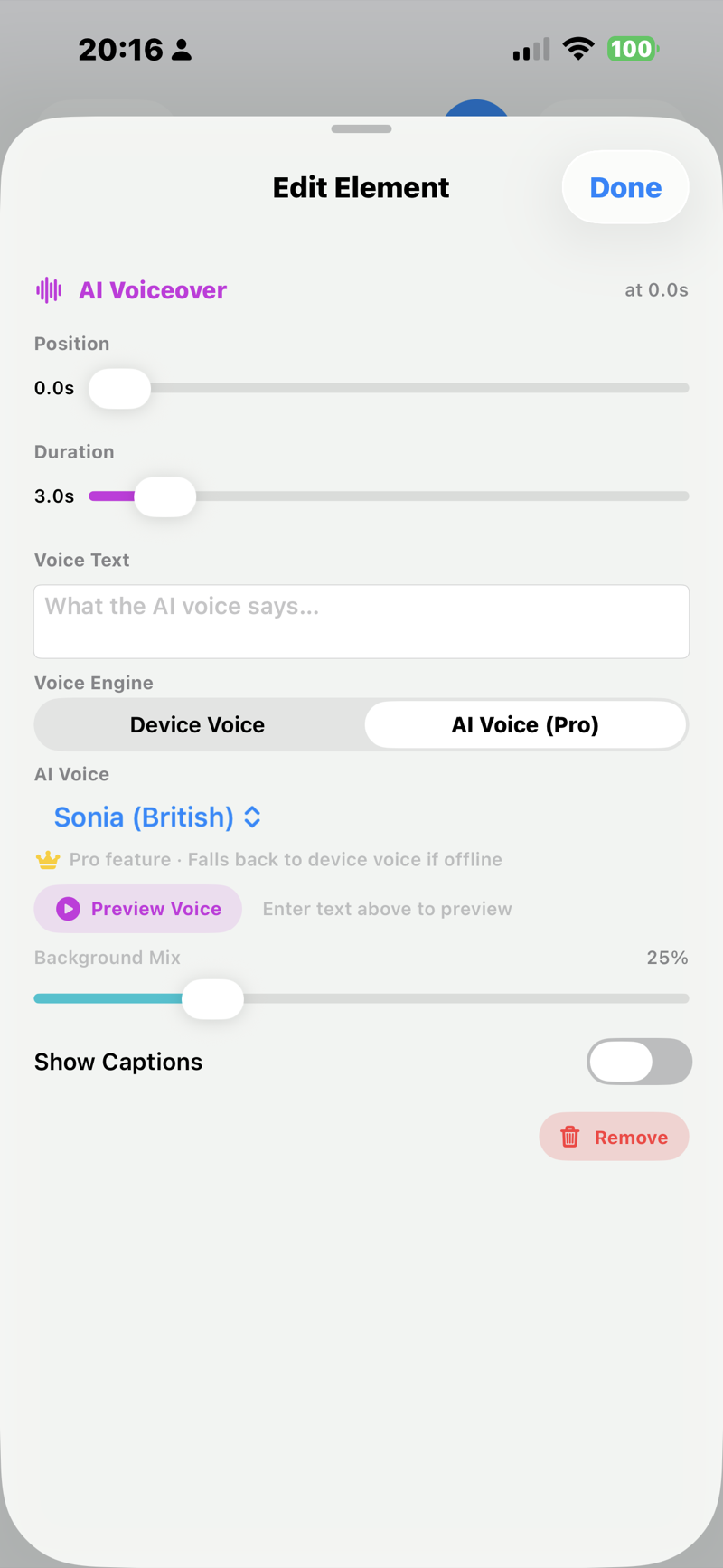
Open Settings and choose AI Voice
From the Home tab, go to Settings. Scroll to the Voiceover section. Tap the engine picker and choose AI Voice (Pro). The picker collapses to show the AI voice options below.
Pick a voice
Tap the Voice row to open the voice selector. Each voice has a preview button — tap to hear a short sample. When you find one you like, tap it once to select.

Tune rate and pitch
Two sliders below the voice picker:
- Rate (-50% to +50%) — slows or speeds up the spoken delivery
- Pitch (-10 Hz to +10 Hz) — shifts the fundamental frequency up or down
Default is +0% / +0 Hz which is what the voice was trained on. Small nudges (±10%, ±2 Hz) feel natural; larger swings get robotic fast.
Write your script
From the Home tab, tap Intro Voiceover. A text field opens — type or paste what you want the voice to say. Keep it to 1–2 sentences for an intro (typical 5–10 seconds spoken). Longer scripts work but use more of your monthly character budget.

Generate and preview
Tap Generate. POV Syncer sends your script + voice + rate/pitch to the cloud TTS endpoint and streams the MP3 back — usually 2–4 seconds. The result is auto-saved to your Voice Library (more on that below) and queued into the current project.
Preview it with the play button. If it's not what you wanted, change the script, voice, or sliders and regenerate — each generation costs only the character count.
Add karaoke captions (optional)
Toggle Captions on. POV Syncer transcribes your TTS output and bakes the words into the video as on-screen subtitles, timed to each word. This is the format TikTok and Reels users expect — text-on-screen is a watch-time multiplier.

The Voice Library — reuse your best clips
Every AI clip you generate is automatically saved. To reuse one:
- Open Settings → Voiceover
- Tap Voice Library
- Browse — each clip shows its script, voice, and creation date
- Tap to insert it into the current project
If you have a "channel intro" you reuse across every video, generate it once and drop it in from the library every time. No regeneration cost.

Render
Process the video as normal. The AI voice plays at the start (or wherever the Intro is placed on the timeline) — and the original video audio automatically ducks under it to 15% volume with 80ms ramps so the narration stays clear without abrupt cuts.
If you go offline mid-render
POV Syncer monitors network state. If your connection drops while a video is rendering with AI voice queued, the renderer automatically falls back to the device's built-in voice for that clip. You'll see a log entry noting the fallback. Resaving with a connection regenerates the AI version.
Tips for natural-sounding output
- Write the way someone actually talks — short sentences, contractions ("I'm" not "I am"), one idea per phrase
- Punctuation matters — full stops create pauses, ellipses create longer ones
- For lists, use semicolons between items rather than just commas — neural voices over-flatten comma lists
- For tricky words (place names, brand names), spell them phonetically if the default pronunciation is off ("Reykjavik" → "Ray-kyah-vik")